


You can give Claude access to your Downloads folder, walk away, and come back to a sorted, deduplicated, properly-named set of files.
You can tell it to pull every email from a client this week, summarize the thread, and have a one-page brief waiting on your desktop before tomorrow’s call.
You can hand it a messy folder of meeting notes and get back a presentation.
Claude isn’t just a chat box anymore. It runs your machine, touches your files, and ships finished work back to you. The catch: there are now six different versions of it, and most people are still using the slowest one.
This is the map.
The Six Places Claude Lives
| Where | What it does | Best for |
|---|---|---|
| claude.ai | Chat in your browser | Quick questions, writing, brainstorming |
| claude.ai/code | Cloud coding sandbox | Learning to code, fast prototypes |
| Claude Desktop App | macOS/Windows app with Chat, Code, and Cowork tabs | Real work, file access, automation |
| Claude in Chrome | Browser extension that sees, clicks, and navigates websites alongside you or through Cowork | Web research, form filling, browser automation, recorded workflows |
| Claude Code (Terminal or IDE) | The same coding agent, run in your terminal or inside Cursor/VS Code/Antigravity | Real software development |
| Claude Managed Agents | Cloud-hosted autonomous agents via API | Teams building automated pipelines |
The difficulty curve runs left to right. Start on the left. Move right when a real problem demands it.
Most people only need two of these. Figuring out which two is the whole game, so the rest of this article walks you through each one with a clear pick for who it’s for.
claude.ai (The Web)
You probably already know this one. Browser, login, type, get an answer.
It can write, research, explain, brainstorm, search the web, and read files you upload. Projects lets it remember context across sessions so you can come back to a long-running thing without starting over, and it’s on every plan now, including Free.
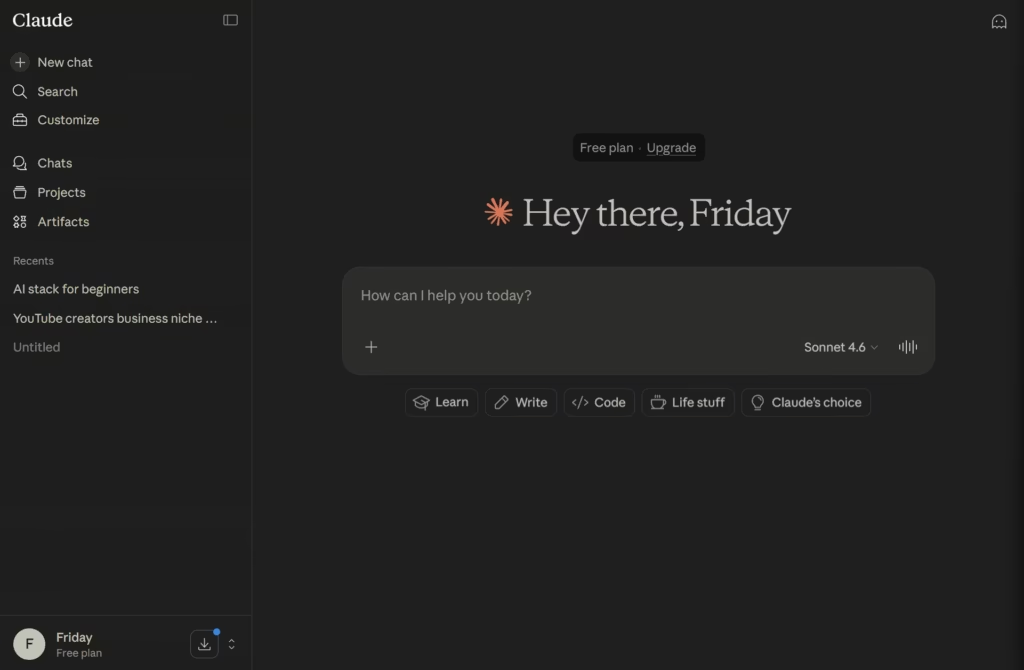
What it can’t do: touch your local files, open your apps, or take action on your machine. For that, you need the desktop app.
Start here if you’re testing Claude for the first time, you’re on someone else’s computer, or you only need quick answers.
claude.ai/code (The Cloud Coding Sandbox)
A coding environment that runs in a browser tab. Nothing installs on your machine.
You describe what you want, like “build me a markdown to PDF converter,” and Claude writes the code, runs it on Anthropic’s servers, shows you the output, and fixes anything broken.
All in one conversation. No setup, no terminal, no editor to install.
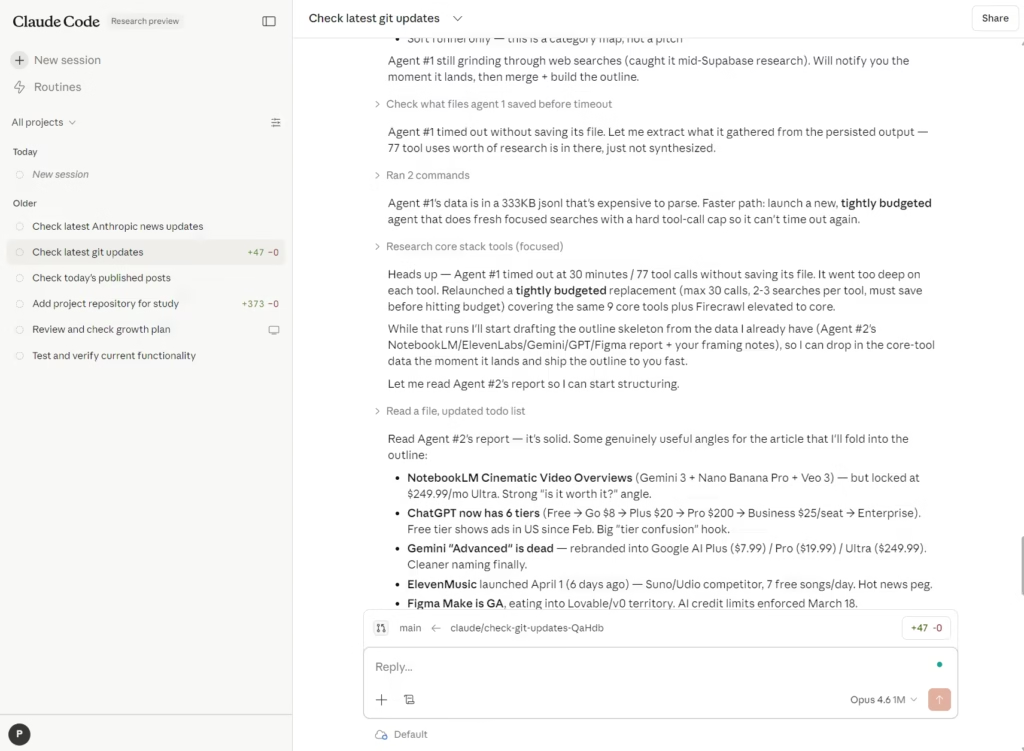
The limit: it runs in the cloud. Your local files, your terminal, your apps are off-limits. If you want Claude to touch any of that, you need the desktop app or Claude Code itself.
Start here if you want to see what AI coding feels like before committing to any setup.
The Claude Desktop App (How to Use Claude Without a Terminal)
Download at claude.com/download macOS and Windows.
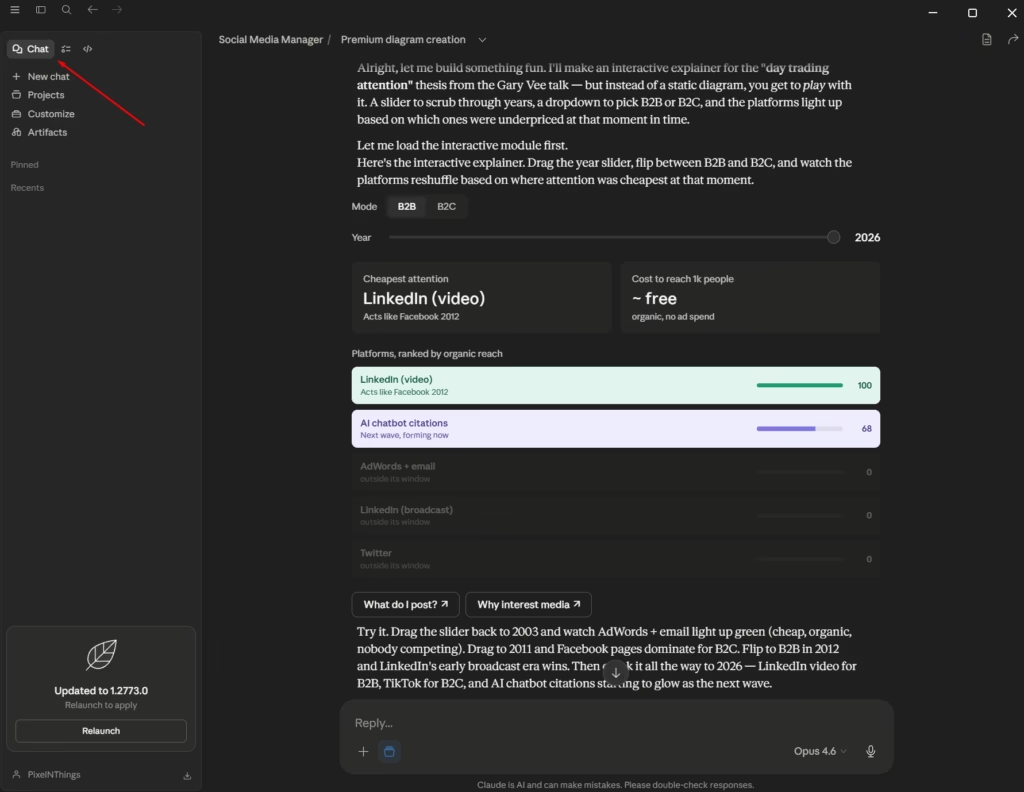
This is where most of Claude’s real power lives if you’re not a developer. Three tabs along the top… Chat, Code, and Cowork. Each does a different job.
Chat tab
Same as claude.ai, but pinned to your dock and faster. If you’ve installed the app, use this instead of the browser. There’s no reason not to.
Code tab
A coding environment that runs locally. Claude reads your project folders on your PC, edits files directly, and runs commands.
The April redesign added something: parallel sessions. You can have one Claude refactoring a backend, another fixing a frontend bug, and a third writing tests, all in the same window with a sidebar to switch between them.
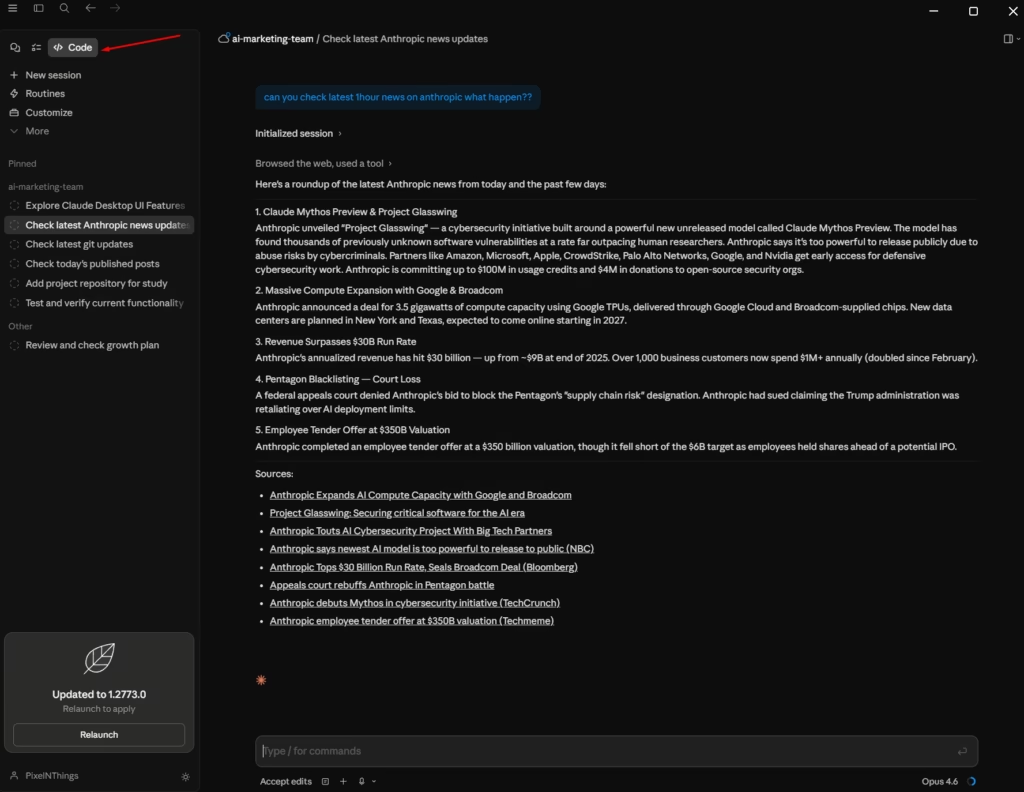
There’s also an integrated terminal, an in-app file editor, an HTML and PDF preview pane, and a drag-and-drop layout. If you’ve been juggling four terminal windows and three editor tabs to work with Claude Code, this collapses all of that into one app.
Use the Code tab if you write software seriously and want a GUI instead of a bare terminal.
Cowork tab
This is the one that changes what Claude is for non-developers. It gets its own section below.
Cowork (Claude for Non-Developers)
Cowork is Claude’s agent for knowledge work that isn’t coding.
You point it at a folder, describe an outcome, and walk away. It plans the steps, shows you the plan, waits for your approval on anything consequential, then executes. You come back to a finished deliverable.
The mental model worth keeping… Claude Code is for developers building software. Cowork is for everyone else.
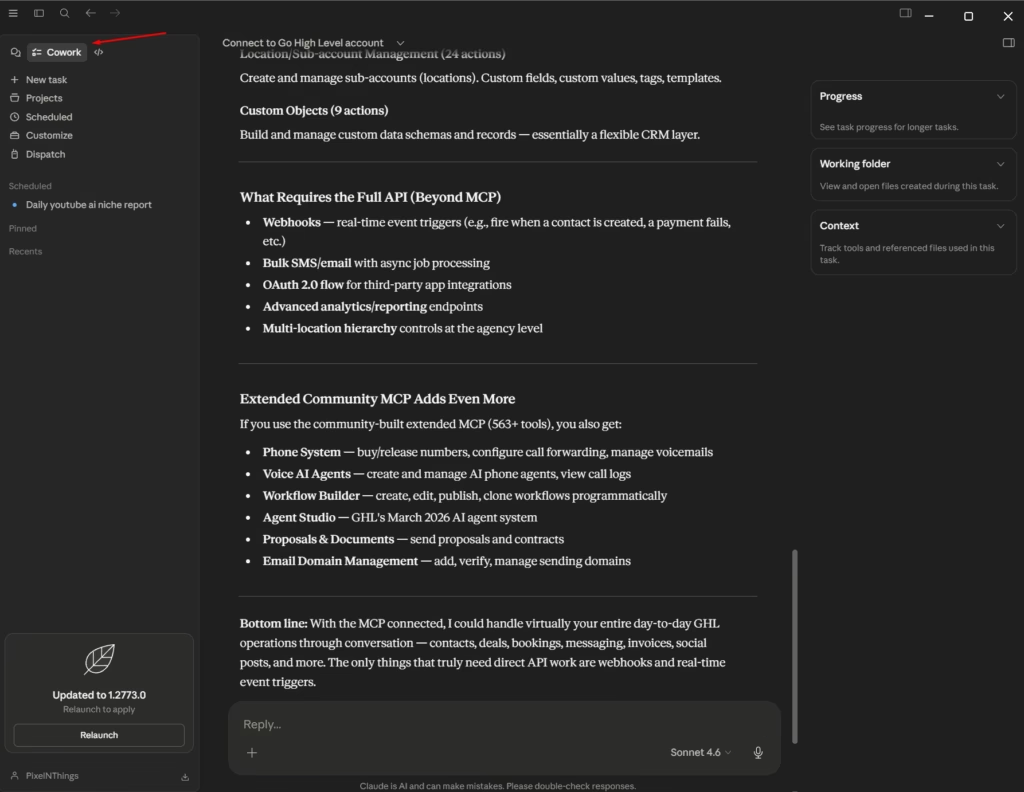
A few things Cowork is good at right now:
- Pull and organize. “Summarize my Slack messages from today.” “Organize my Downloads folder by file type and flag duplicates.” “Pull every invoice from my Gmail this month and build a spreadsheet.”
- Create finished outputs. “Turn these meeting notes into a presentation.” “Build a status report from these three project folders.” “Write a one-page summary of this PDF.”
- Run on a schedule. Type
/scheduleinside any Cowork task and it’ll repeat. Daily morning briefings, weekly Friday reports, monthly cleanup. Local scheduled tasks need your computer awake and the app open. For tasks that need to run when your machine is off, Routines is the cloud version (more on that in the decision tree below). - Take input from your phone. Open the Claude mobile app, send a task to your desktop via Dispatch, and your desktop runs it while you’re away from your desk.
How to start:
- Open Claude Desktop
- Click the Cowork tab.
- You’ll see a “Work in a project” dropdown at the bottom of the input field.
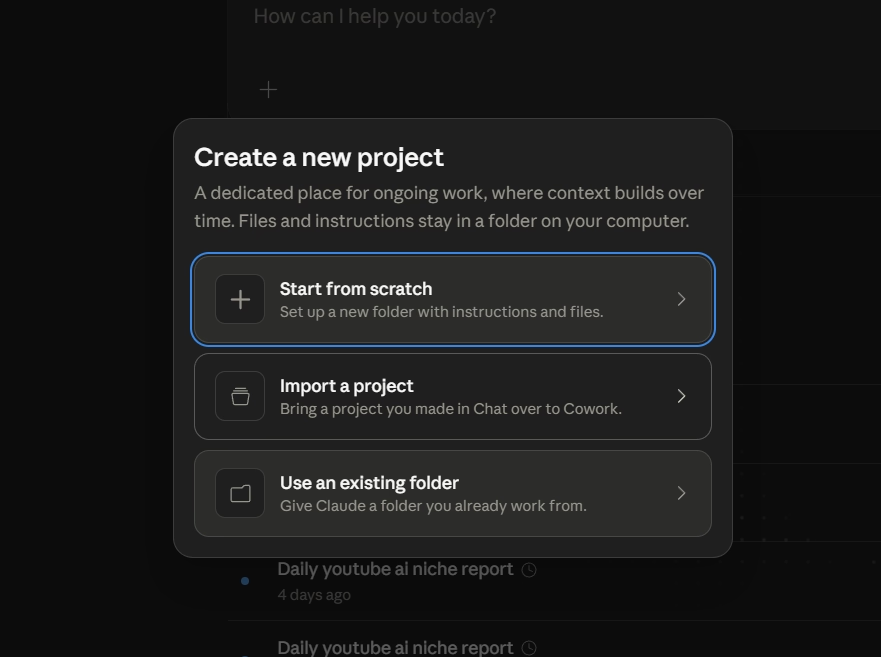
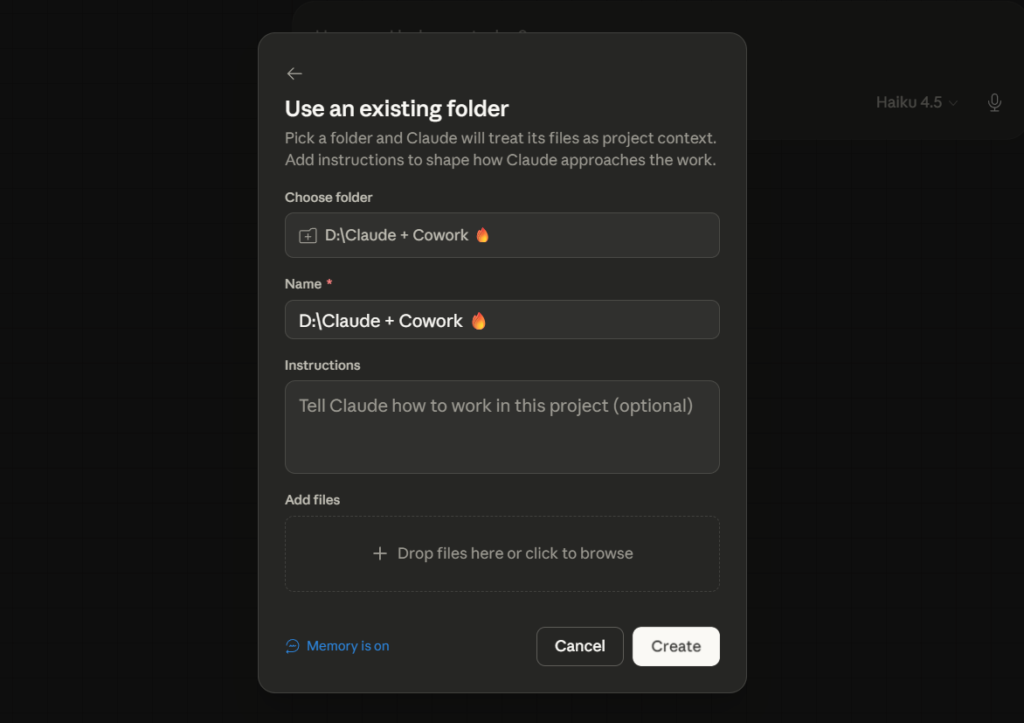
- Pick a recent folder, choose a different one, or click Projects to create a new project (start from scratch, import one from Chat, or point it at a folder you already use).
- Once you’ve picked where Claude should work, describe what you want done.
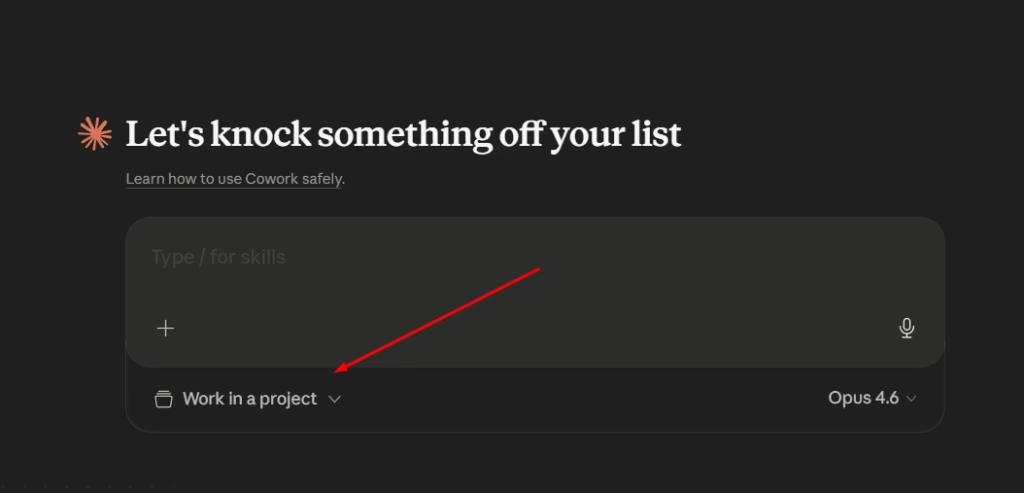
Claude will ask clarifying questions, show you its plan, and wait for approval before doing anything that can’t be undone.
Who can use it: all paid Claude plans. Pro ($20/mo), Max ($100–$200/mo), Team Standard and Premium ($25–$100/seat), and Enterprise. Not on Free.
For the full setup walkthrough, connectors, scheduling, and real workflows, see the Cowork Setup Guide.
Claude in Chrome (The Browser Extension)
Claude in Chrome puts an AI sidebar in your browser. Install it from the Chrome Web Store, sign in with your Claude account, and Claude can see, click, type, and navigate any tab you give it permission to touch.
Three ways people use it:
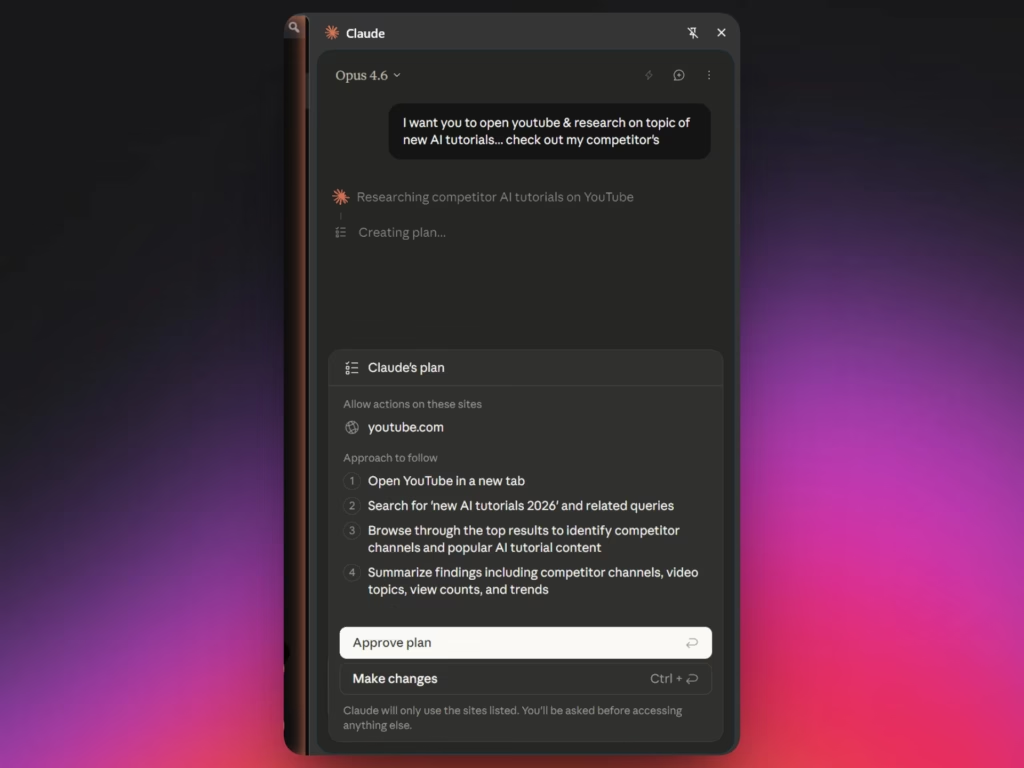
- Standalone. Open the sidebar, describe a task, Claude handles it in the browser. Research competitors across five tabs, fill a form on a vendor site, extract pricing from a product page into a spreadsheet. You can record a workflow once and let Claude replay it on a schedule (daily, weekly, monthly).
- As a connector for Cowork. Enable it in Claude Desktop settings under Connectors and Cowork uses your browser when it needs web access. Faster and more reliable than the screen-capture path in computer use, because Claude navigates Chrome directly instead of taking screenshots of your screen.
- As a testing tool for Claude Code. Developers run
/chromein the terminal. Claude builds code, then opens Chrome to test, reads console errors and DOM state, and loops back to fix what’s broken. Full build-test-fix cycle without switching windows.
What it can access: most websites you can visit in Chrome. YouTube, Google Workspace, Notion, LinkedIn, Slack, Shopify dashboards, internal tools, local dev servers.
What it can’t access: Anthropic blocks financial services (banks, brokerages, crypto exchanges), adult content, and pirated content by default.
Reddit blocks AI crawlers and requires authentication, so Claude struggles there too. Sites behind login walls work fine as long as you’re already signed in, because Claude shares your browser’s login state.
FYI: If Reddit research is part of your workflow, Google’s built-in Gemini sidebar in Chrome handles Reddit well and works on most other sites too.
If it hits a CAPTCHA or multi-factor authentication prompt, it pauses and asks you to handle it manually before continuing.
Availability: beta on all paid plans. Pro users are limited to Haiku 4.5 in the extension. Max, Team, and Enterprise get model choice including Opus 4.6 and Sonnet 4.6. Chrome and Microsoft Edge only. No Brave, Arc, or other Chromium browsers.
Same safety note as computer use: Claude in Chrome can see everything visible on your screen in any tab you grant access to, including logged-in sessions and stored data. Don’t open the sidebar while viewing sensitive accounts. Start with sites you trust.
Claude Code (Terminal or IDE)
Claude Code is one product. Where you run it is up to you.
The bare terminal
The most direct option. macOS Terminal, iTerm, Windows PowerShell, Windows Terminal, any Linux shell. You type claude and Claude takes over the window.
BASH
claude "Build me a login system with email and password"It reads your project, plans the steps, writes code, runs tests, and asks before anything destructive. Every command, every file change, visible as it happens. Nothing hidden behind a UI.
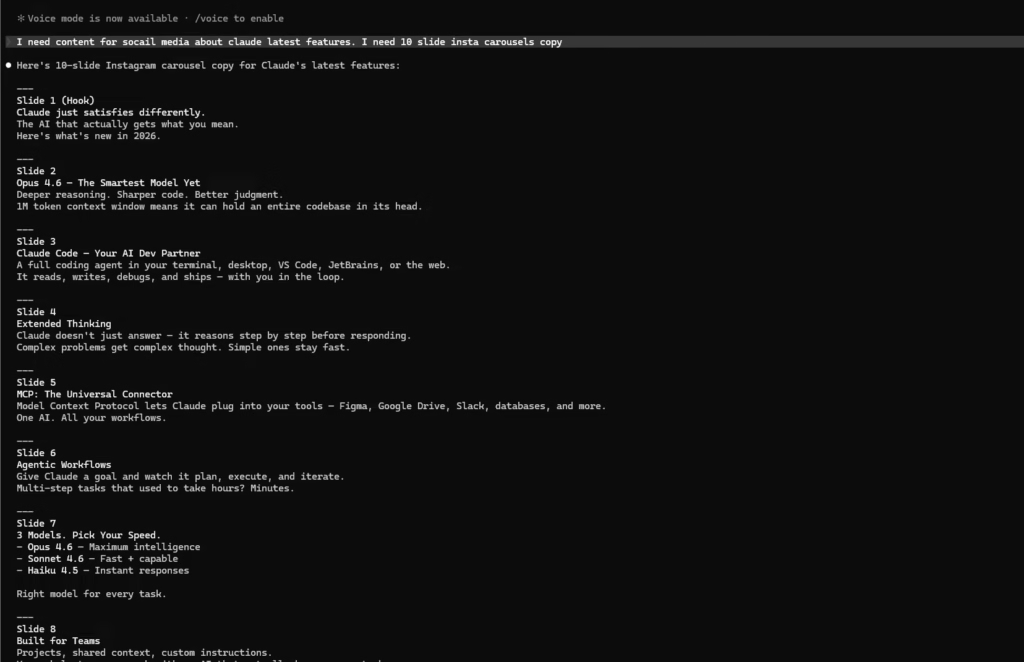
When this is the right choice: you’re shipping production code, you need an audit trail, or you already live in the terminal.
Not the right starting point for beginners, but if you do want to install it:
BASH
curl -fsSL https://claude.ai/install.sh | bash

claude
Inside an IDE
Same Claude Code engine, wrapped in a code editor where you can see your files and Claude’s actions side by side. Three good options:
- Cursor. VS Code fork with Claude built in. Free tier plus $20/mo Pro. The most popular AI-first editor right now, and the easiest landing pad if you’re new.
- VS Code + Claude Code Extension. Use your existing VS Code. Install the Claude Code extension from the marketplace. Best if VS Code is already your editor.
- Antigravity. Google’s agent IDE, VS Code fork built around running multiple AI agents in parallel. Supports Claude Opus 4.6, Sonnet 4.6, plus Google’s Gemini models. Antigravity is free during Public Preview, but worth knowing… Pro users have reported being locked out for 7+ days at a time when quotas refresh inconsistently. Useful tool, unreliable as a daily driver right now.
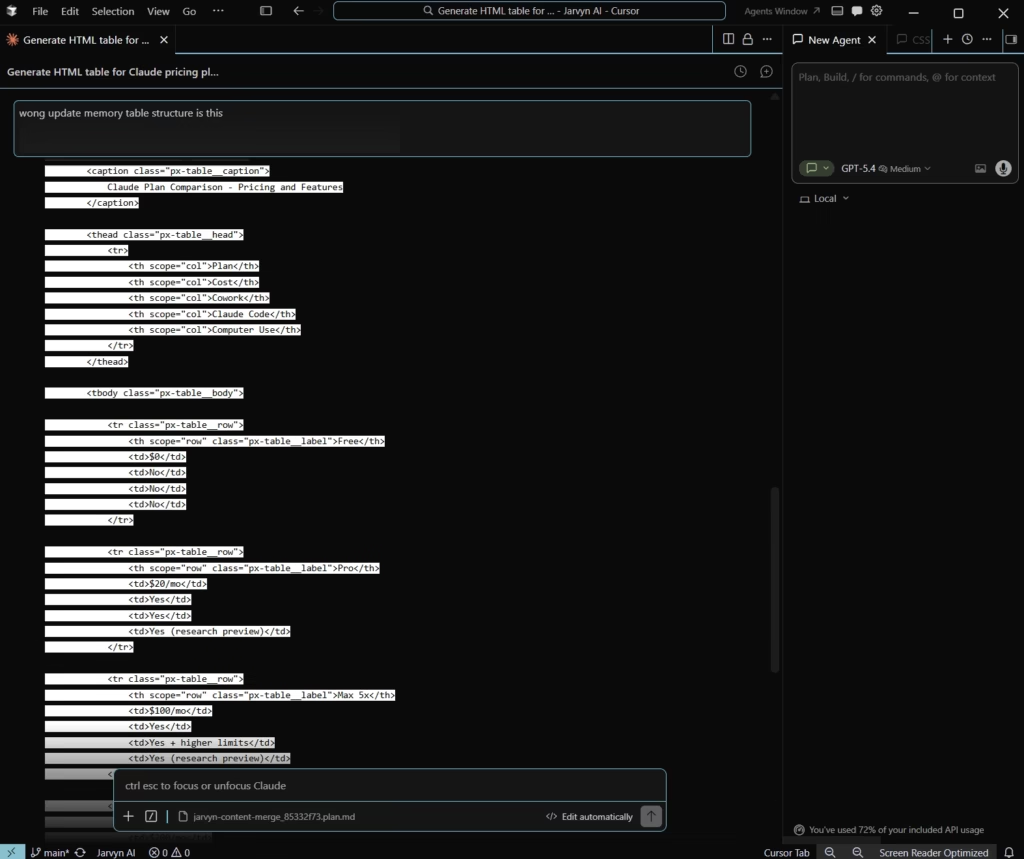
For beginners writing code: start with Cursor. The IDE makes it easier to see what Claude is doing. Move to the bare terminal later if you find yourself wanting less UI in the way.
If you’re curious what real Claude Code workflows look like beyond software, here’s how I use it for content research in 30 minutes, and here’s how to connect it to Obsidian so your vault becomes long-term memory.
Bonus: Claude Managed Agents
Worth a quick mention even though most readers won’t touch it.
This is the developer-only path, launched in public beta in April 2026. Cloud-hosted Claude agents that run inside secure sandboxes on Anthropic’s infrastructure, with built-in tools for code execution, file manipulation, web search, and MCP connectors out of the box.
What makes it different from Claude Code or Cowork: agents run for hours autonomously, keep state across disconnects, and can spin up sub-agents to parallelize work.
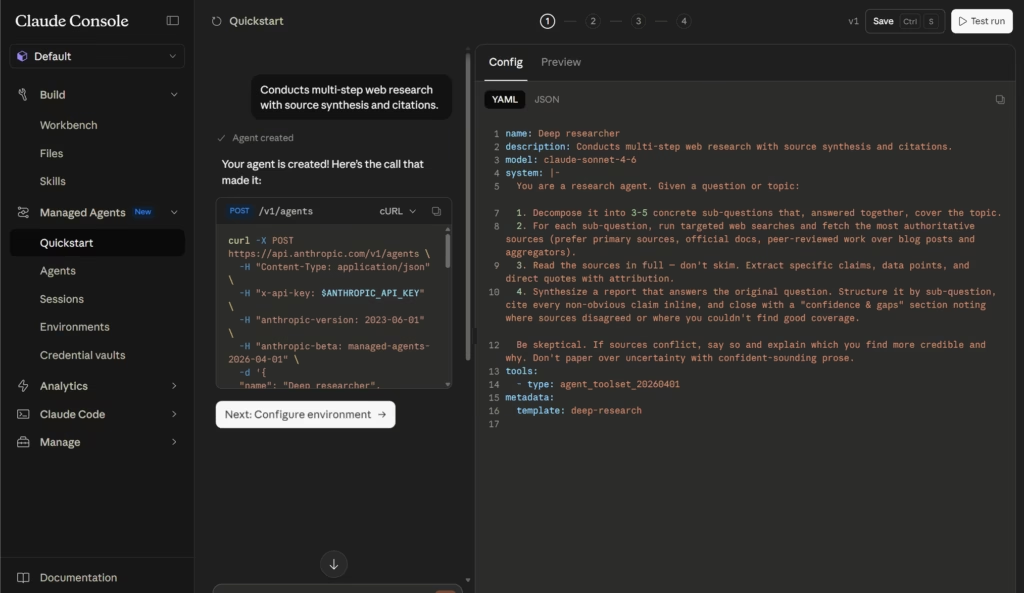
You build them via the Claude API or the visual builder at platform.claude.com, then embed them inside your own software. Asana, Notion, and Sentry have already built customer-facing AI features on top of it.
Pricing is consumption-based: standard Claude API token rates (Sonnet 4.6 at around $3/M input and $15/M output) plus an infrastructure fee of roughly $0.08 per session-hour for active runtime.
Skip it if you’re not building a product on top of Claude. The other four cover everything else.
Which One Should You Use
- Just want to chat with Claude → claude.ai or the Desktop Chat tab
- Want to learn what AI coding feels like → claude.ai/code
- Have repeating knowledge work to automate → Cowork (Desktop)
- Want a scheduled task that runs every Monday morning → Cowork’s
/scheduleif your computer’s usually awake, Routines (cloud-hosted, runs even with your laptop closed) if not - Want to send tasks from your phone → Cowork + Dispatch
- Want Claude to automate browser tasks → Claude in Chrome (standalone or as a Cowork connector)
- Want Claude to click around your computer for you → Cowork or the Code tab on Desktop, Pro/Max only
- Writing software seriously → Cursor, VS Code + extension, or the bare terminal
- Shipping production code with full transparency → Claude Code in the terminal
- Building a product on top of Claude → Managed Agents (developer territory)
Most readers will end up using two surfaces: claude.ai for everyday questions and either Desktop Cowork (if you don’t write code) or Cursor / Claude Code (if you do).
Computer Use: When Claude Drives Your Screen
This one is worth its own section because it’s the biggest shift in how Claude actually works in 2026.
On Pro and Max, Claude can use your computer directly. Open apps, navigate web pages, click buttons, type into fields, move files. It sees your screen and acts on it. Available in both Cowork and the Desktop Code tab.
What Claude actually does, in order: it tries connectors first (Gmail, Slack, Drive are fastest and most reliable), falls back to a browser if needed, and only takes over your screen as a last resort.
Screen control is slower and more error-prone than a direct integration, so Claude treats it as the path of last resort, not the default.
Where it shines: tasks that cross multiple apps. “Pull these numbers from this spreadsheet, paste them into this form, save the confirmation.” Web research that requires logging in.
Anything tedious to describe step by step because it’s easier to just show.
One caveat: computer use is still a research preview. Anthropic has documented prompt injection risk. A malicious web page could try to slip instructions into what Claude sees on your screen. Don’t use it for sensitive workflows (banking, medical records, anything you wouldn’t want a stranger glancing at) until you’ve used it enough to trust how it behaves.
It’s also the feature that makes Dispatch genuinely powerful. Send a task from your phone, your desktop runs it on its own, you come back to finished work.
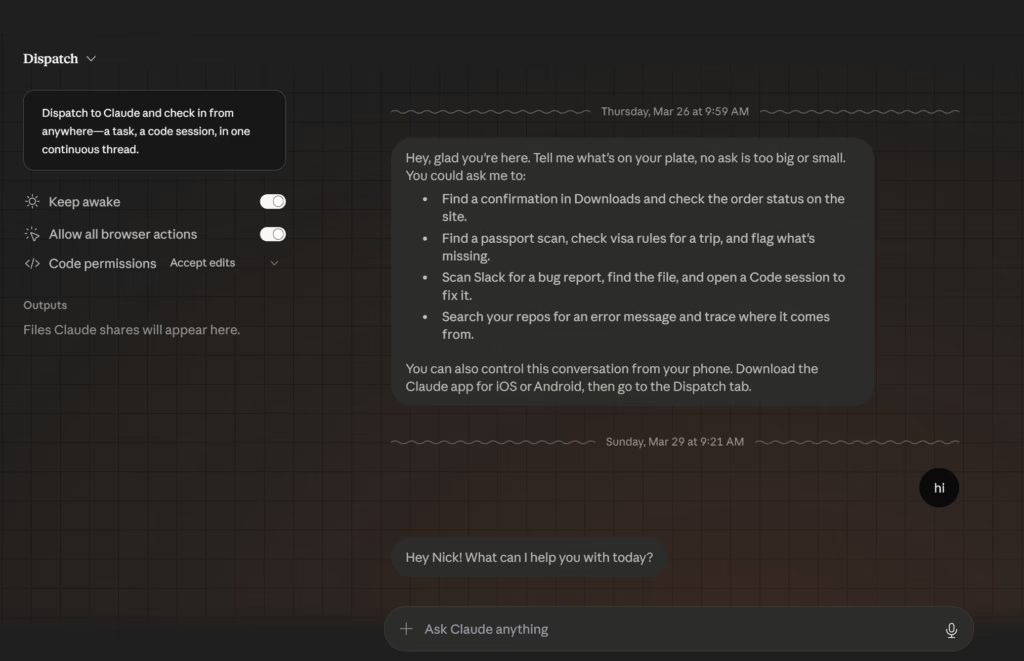
One thing to know before you try it on Mac: macOS won’t let any app see your screen or move your mouse without explicit permission.
The first time you run computer use, you’ll need to open System Settings → Privacy & Security and enable both Screen Recording and Accessibility for the Claude desktop app.
macOS Sequoia and later also require you to renew screen recording permission every 30 days, with weekly check-in prompts.
Annoying, but it’s how Apple keeps an app from quietly turning into a remote control. On Windows, the permission step is lighter and usually handled at install time.
Pricing: Which Claude Plan Should I Get?
| Plan | Cost | Cowork | Claude Code | Chrome Extension | Computer Use |
|---|---|---|---|---|---|
| Free | $0 | No | No | No | No |
| Pro | $20/mo | Yes | Yes | Yes (Haiku 4.5 only) | Yes (research preview) |
| Max 5x | $100/mo | Yes | Yes + higher limits | Yes (full model choice) | Yes (research preview) |
| Max 20x | $200/mo | Yes | Yes + highest limits | Yes (full model choice) | Yes (research preview) |
| Team Standard | $20–$25/seat/mo | Yes | Yes (lower limits) | Yes (full model choice) | No |
| Team Premium | $100–$125/seat/mo | Yes | Yes (6.25x Pro usage) | Yes (full model choice) | No |
| Enterprise | Custom | Yes + admin controls | Yes | Yes + admin allow/blocklists | No |
For most readers, the math is simple: start Free to see if Claude fits how you think. Move to Pro ($20) when you want the desktop app, Cowork, or computer use. Pro covers everything in this article except enterprise admin features.
Max is for heavy daily users who hit Pro’s limits often. If you’re not constantly bumping into rate limit messages, you don’t need it.
Max 5x at $100 is the right step up before Max 20x at $200, and most people who upgrade from Pro never need the 20x tier.
For a deeper breakdown of what each plan actually gives you, see Claude Pro vs Max vs Free: Which Plan Is Actually Worth It. For the full tool stack economics beyond just Claude, the vibe coder stack breakdown covers the math.
Six Things to Try This Week
If you’re going to remember one section, make it this one.
Task 1: Ask Claude something real (5 min).
Go to claude.ai. Ask the question you’ve been Googling badly all week. Don’t water it down to make it easier for Claude. Phrase it the way you’d ask a smart friend.
Task 2: Rewrite something you wrote (10 min).
Paste in an email or document. Ask Claude to improve it. Then ask why it changed what it changed. The “why” is where the learning is, not the rewrite.
Task 3: Build something at claude.ai/code (15 min).
Try something small. “Build me a random quote generator” or “make me a markdown to HTML converter.” Watch how fast it goes from one sentence to running code. This is the moment most non-developers realize what’s actually happened in the last two years.
Task 4: Use Cowork to organize something (20 min).
Download Claude Desktop. Open the Cowork tab. Try: “Organize my Downloads folder by file type and flag any duplicates.” Watch it work. Approve the plan. See what comes back.
Task 5: Schedule a recurring task (5 min + setup).
Pick something you do every week. A status update, a folder cleanup, a Monday briefing. Set it up in Cowork with /schedule.
Come back next week to a finished deliverable. If your computer is usually off when it should run, use Routines instead. Same idea, runs in the cloud.
Task 6: Let Claude research something in your browser (15 min).
Install Claude in Chrome from the Chrome Web Store. Open the sidebar, pick a task you’d normally do by hand: “Open YouTube and research competitor channels making AI tutorials, summarize what topics they’re covering and which videos are getting views.”
Claude will show you its plan before it starts. Review it, click Approve, and watch it work through the tabs. Try it on your own website too: “Open mydomain.com and audit the homepage copy for clarity and CTA placement.”
Things Worth Knowing Before You Start
- File access. You pick which folders Claude can read and write. It shows you the plan before doing anything consequential and waits for approval. Files stay on your machine unless you connect a web service.
- Computer use risk. Still a research preview. Don’t use it for tasks involving sensitive data like banking, health records, or anything in an account you’d panic about losing. Prompt injection is a documented risk, not a theoretical one.
- Cowork vs Claude Code. Cowork is for non-coding knowledge work like files, docs, reports, and automation. Claude Code is for writing and shipping software. Both live inside the desktop app. If your task involves code, Claude Code. If it doesn’t, Cowork.
- Claude in Chrome vs computer use. Both let Claude interact with websites. The difference: Claude in Chrome navigates your browser directly (faster, more reliable). Computer use takes screenshots of your whole screen and controls your mouse (slower, but works with any app, not just Chrome). Cowork tries Chrome first and only falls back to screen control when there’s no better option.
- What if Claude breaks something? Consequential actions like deletes, sends, and file moves all require your approval. The approval step isn’t optional. Read the plan before you click yes.
Where to Go From Here
Pick one surface. Spend 30 minutes on it. See if it fits how you actually work.
If you don’t write code, that surface is almost certainly the Cowork tab in the desktop app and if you do write code, it’s Cursor or Claude Code in the terminal, depending on whether you want a GUI or not.
Most readers will land on two of the six eventually. You don’t need all six. You need to know which two are yours.
The hard part in 2026 isn’t access anymore. It’s deciding which version of Claude is right for the work you actually do, and then putting in the hour it takes to set it up properly.
Once it’s set up, the distribution-first playbook is what you do with the time you’ve just gotten back.
See you in the next post. PEACE ✌
Frequently Asked Questions
About

Nick Chauhan
Web Developer & Founder Of PixelNThings
I build AI-powered systems that actually ship. Agents, automations, full-stack apps. Claude, Cursor, Gemini, MCP, n8n, Stitch etc.. Also design high-converting funnels and website on Systeme.io, WordPress & GoHighLevel. I post what I build.

