


GoHighLevel keeps shipping AI features. Ask AI, Agent Studio, Voice AI, Conversation AI. If you’re on GHL, you’ve seen the updates.
So why would you plug in a completely different AI?
I had the same reaction at first. GHL already has AI built in, why would I need Claude too? Then I tried asking GHL’s AI something simple: “Which of my pipeline leads haven’t been followed up on based on the SOP I wrote last month?” Nothing.
Because GHL’s AI only knows what’s inside GHL. It can see your contacts, your pipelines, your conversations. But it has zero idea that your SOPs, your content calendar, your Google Analytics, or your project files even exist.
Claude is different.
You connect it to GHL through something called MCP (think of it like a bridge that lets Claude talk to GHL’s data), and suddenly you’ve got an AI that can look at your CRM and your local files, your notes, your spreadsheets, everything.
All in one conversation. You ask it a question and it pulls from all of it, not just one app.
There are six ways to set this up right now. Some are pretty quick, some are more hands-on. The Claude Desktop app gives you Code and Cowork modes that connect to GHL directly.
Claude Code works inside editors like VS Code, Antigravity (Google’s new IDE), and Cursor. There’s a Chrome extension that lets Claude actually see and click around your GHL dashboard.
And for claude.ai and mobile, there’s a third-party workaround for read-only access.
I went through all six because every time I searched for help, I got a different answer. Reddit said one thing, Facebook groups said another, half the tutorials were outdated. So I just tested everything myself and wrote down what actually worked.
If you’ve never used Claude before, start with the Claude Beginner’s Guide 2026. That covers what each interface does. Come back here once you’ve got the basics.
This is Part 1 of two. This one covers every connection method, how to lock down permissions so Claude doesn’t accidentally wreck your CRM, and how to pick the right setup for your situation. Part 2 covers what to actually do once you’re connected.
So let’s get into it.
What Claude Actually Does With GHL That the Built-In AI Can’t
Once Claude is connected, it can pull your pipeline data and then check it against a content calendar you keep in Obsidian, all in the same conversation.
It reads a client brief from your local files, checks the contact record in GHL, and tells you if the follow-up sequence actually matches what you agreed on.
It looks at your Google Sheet with ad spend, compares it to pipeline revenue in GHL, and tells you which campaign is making money and which one is burning it.

Some real examples of what this looks like:
- Checking your pipeline against your own process. You tell Claude “Look at my pipeline, compare it against the SOP in my project folder, and flag any leads that aren’t being handled the way they should be.” GHL’s AI can’t do this. It doesn’t know your SOP exists. Claude reads both and connects the dots.
- Writing code for GHL workflows. GHL’s workflow builder has a custom code node that takes JavaScript. The built-in AI can generate basic scripts, but it doesn’t know anything about your other workflows or your project. Claude writes that same code with full context of everything you’ve built. Better context, better output.
- Bulk updates without clicking around for hours. “I have a CSV of 1000 contacts from a webinar. Check them against my existing GHL contacts, tag the new ones as ‘webinar-april’, and create opportunities for anyone who attended more than 20 minutes.” One prompt. In GHL’s UI, that’s your whole afternoon gone.
- Pulling reports from multiple places at once. GHL pipeline numbers, GA4 traffic data, and Google Search Console keywords, all in one conversation. Instead of tab-switching between three dashboards and copy-pasting into a spreadsheet, you just ask and get the full picture.
To be clear, you’re not replacing GHL’s AI. You’re adding Claude on your side of things to make your job faster.
The 6 Connection Methods
Quick rundown so you know what you’re picking from. Each one gets its own full section below.
| Method | What It Is | Best For |
|---|---|---|
| Official MCP + Code mode | GHL’s approved API bridge. Start here. | Everyday CRM work |
| Community MCP servers | Third-party servers with more tools | Invoices, workflows, Voice AI |
| Cowork mode | Background scheduled tasks | Daily reports, weekly cleanups |
| Chrome extension | Browser control of GHL dashboard | Visual/UI-only tasks |
| Claude UI (Windsor.ai) | Read-only third-party connector | Mobile, non-technical team |
| Claude Code in IDEs | MCP inside your code editor | Developers building on GHL |
These all stack, by the way. You might use Code mode to pull pipeline data, then flip to your browser where the Chrome extension helps you edit a workflow visually. Pick what fits how you work, or mix and match.
One more worth mentioning: Claude Code on the Web (claude.ai/code) is designed to support MCP connectors, but right now interactive sessions only load GitHub tools reliably. GHL MCP works inside Routines but not in ad-hoc sessions yet. Probably a bug fix away from working, just not there today.
Method 1: GHL Official MCP Server + Claude Code
This is where most people should start. GHL built an official MCP server (basically their approved way for external AI to talk to your account), and it works with Claude Code, the Claude Desktop app, and other MCP tools. You grab a token from your GHL account, plug it in, and now Claude can see your CRM data.
What You Get
Right now the official MCP gives you 36 tools across your GHL account. That number is growing (GHL’s roadmap says 250+). This is what’s actually live right now:
| Category | Tools | What You Can Do |
|---|---|---|
| Contacts & Tasks | 8 | Create, search, update, upsert contacts. Add/remove tags. Get all tasks. |
| Conversations & Messaging | 3 | Send messages. Search conversations. Get message history. |
| Opportunities & Pipelines | 4 | Get and update opportunities. Search deals. Get pipelines. |
| Calendar & Appointments | 2 | Get calendar events. Get appointment notes. |
| Payments | 2 | List transactions. Get order details. |
| Social Media | 6 | Create and edit posts. Get account info, post details, stats. |
| Email Marketing | 2 | Create and fetch email templates. |
| Blog Management | 7 | Create and update posts. Get authors, categories, blogs. Check URL slugs. |
| Location Management | 2 | Get location details. Get custom fields. |
Not in the official MCP yet: invoices/billing, products/store, surveys, custom objects, phone system, workflows, Voice AI. For those you’d need a community MCP server (Method 2) or the full GHL API.
It covers the everyday stuff. GHL is adding more over time.
Setup
About 10 minutes, three steps. That’s it.
Step 1: Get your token and Location ID from GHL
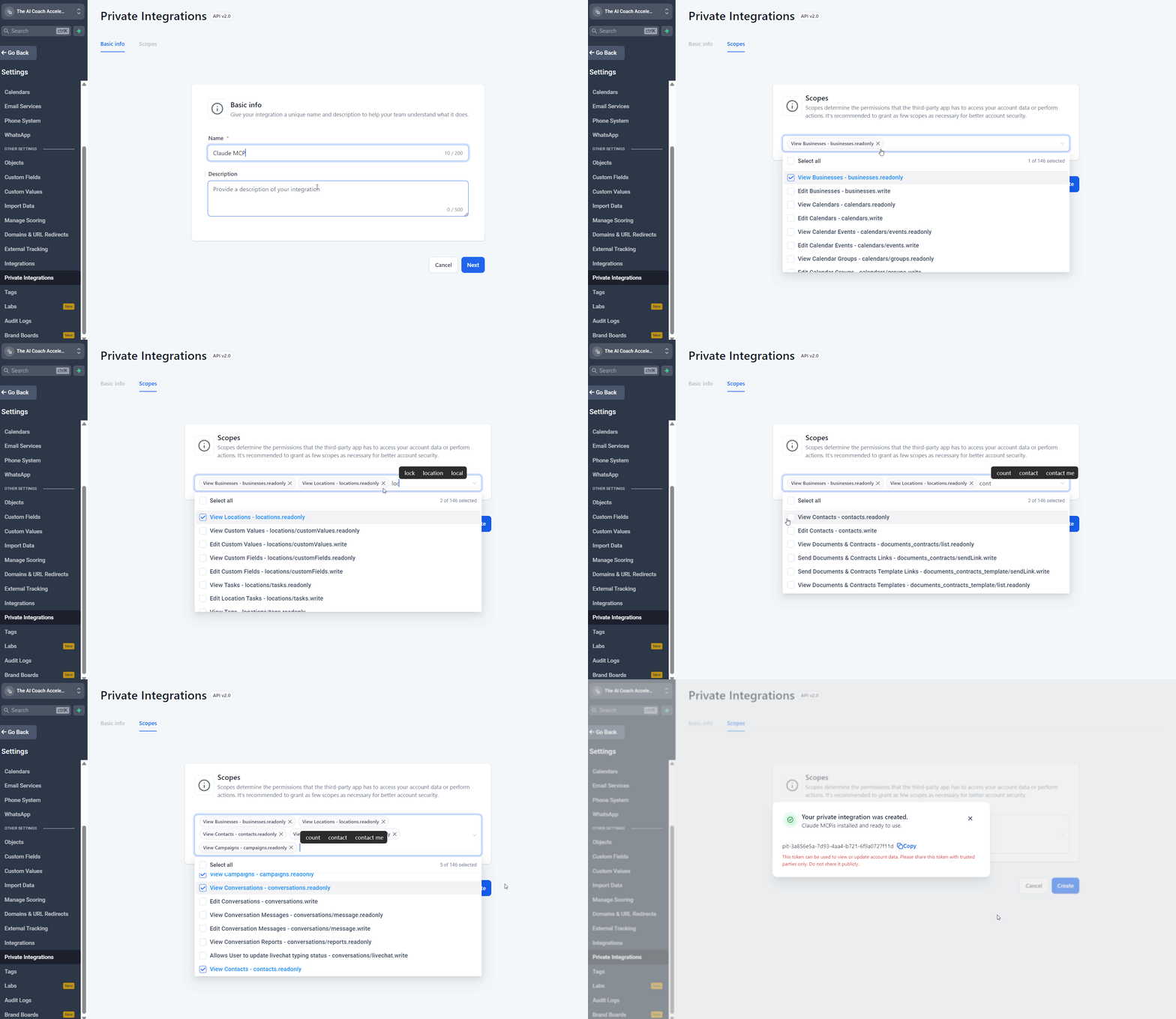
Go to your GHL account. Settings > Private Integrations > Create New Integration. Name it whatever you want, something like “Claude MCP” works.
It’ll ask you to pick scopes, which is just GHL’s way of saying “what do you want this connection to be allowed to do?” I go deeper on this in the Security section below, but for now: just pick read-only for everything. You can always add write permissions later once you’re comfortable.
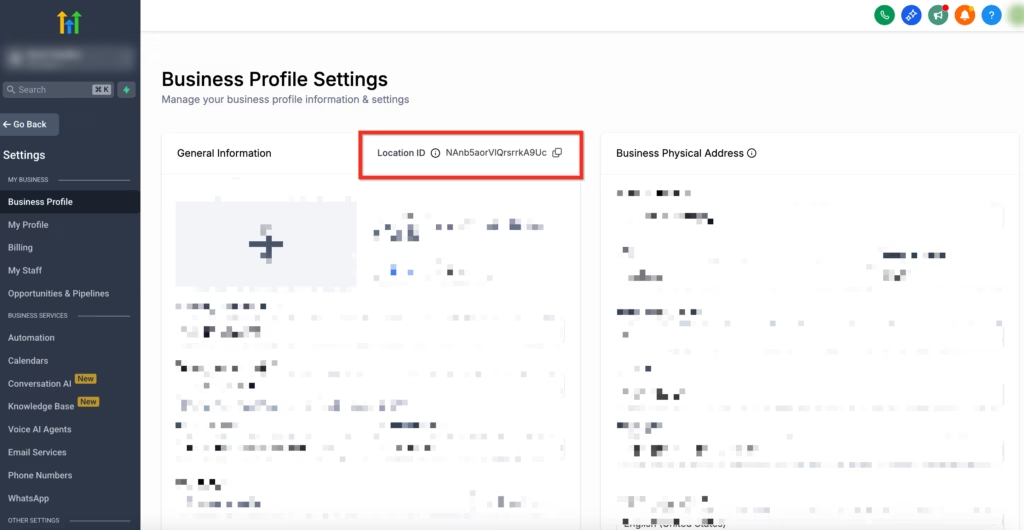
Copy your Private Integration Token. You’ll also need your Location ID, which is a different thing.
To find it: open your sub-account, click Settings (bottom-left menu), then Business Profile. Your Location ID is in the top-right corner of that page, next to “General Information.” You can also grab it from the URL bar, it’s the long string after /location/ in the address.
Step 2: Tell Claude about it
You can do this manually or just ask Claude to do it for you. Open Claude Code and say something like:
“Add a GHL MCP server to my config. The URL is https://services.leadconnectorhq.com/mcp/, my Private Integration Token is [paste token], and my Location ID is [paste ID].”
Claude creates the config file and fills everything in. That’s it.
If you’d rather do it yourself, open your Claude Code MCP configuration and add this:
JSON
{
  "mcpServers": {
    "gohighlevel": {
      "url": "https://services.leadconnectorhq.com/mcp/",
      "headers": {
        "Authorization": "Bearer YOUR_PRIVATE_INTEGRATION_TOKEN",
        "locationId": "YOUR_LOCATION_ID"
      }
    }
  }
}
Swap in your actual token and Location ID, save, and restart Claude Code.
This "url" format works because Claude Code connects to remote MCP servers directly. One thing to know: Claude Code and Claude Desktop use separate config files. Adding GHL to Claude Code doesn’t automatically make it available in Cowork or Desktop, and vice versa.
If you want GHL in both, you’ll need to add the config in both places. For the Desktop app, add the same config to claude_desktop_config.json and it’ll work in Code mode and Cowork.
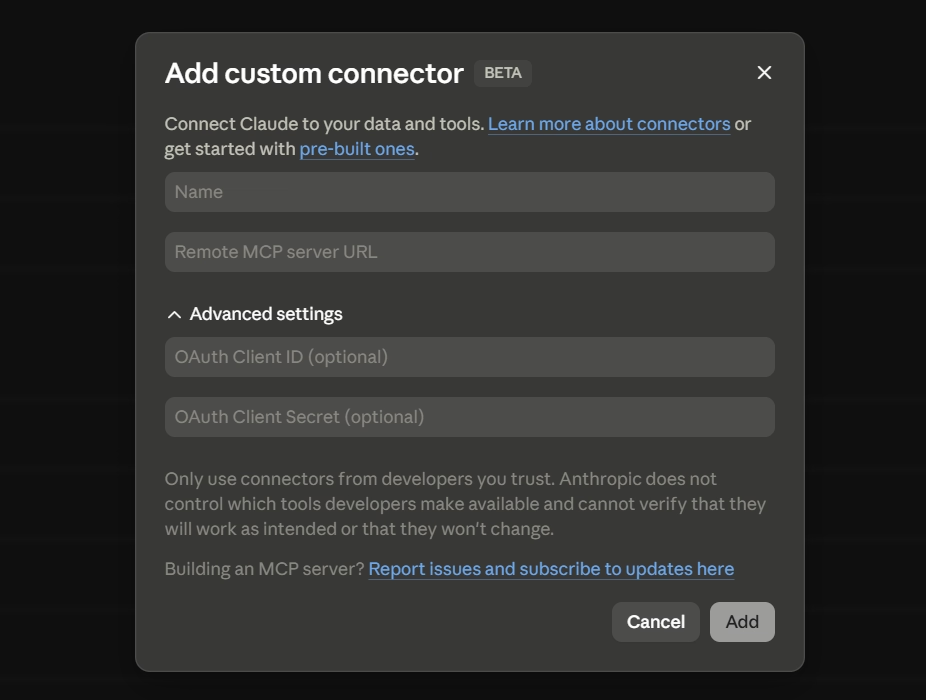
The Custom Connector UI (Settings > Connectors) doesn’t work with GHL yet because it uses OAuth, and GHL’s MCP only supports Bearer tokens right now. Stick with the config file approach.
Step 3: Test it
Open Claude Code and try something simple.
“List all contacts added in the last 7 days.”
If it pulls your contacts, you’re good. If you get an error, double check that your token is correct and that you turned on the contacts.readonly and locations.readonly scope.
What You Can Actually Ask It
Once it’s connected, you’re not stuck with basic stuff like “show me my contacts.” Try something like “Show me all opportunities stuck in Stage 2 for more than 14 days, sorted by value” or “Pull all unread conversations from the last 48 hours, summarize each one, and flag anything mentioning cancellation or refund.”
Both of those would take 10-15 minutes of clicking around the GHL dashboard. As a prompt, maybe 10 seconds.
It works for write operations too. “Take this LinkedIn post copy and schedule it for tomorrow at 9am, then create a shorter version for Twitter at 9:15am.” Or duplicate cleanup, calendar cross-referencing with pipeline data, bulk tagging. Anything the MCP tools cover, you can ask for in plain language.
What It Can’t Do (Yet)
As of May 2026, these are missing from the official MCP:
- Workflows. Can’t create, trigger, or edit automations. This is the biggest gap. Community MCP servers (Method 2) and GHL’s own Workflow AI Builder partially cover this.
- Voice AI agents. Can’t manage phone agents or pull call logs.
- Phone system. Can’t buy numbers, set up forwarding, or manage voicemails.
- Webhooks. Event triggers need the full API.
- Bulk SMS/email blasts. Mass sending with async processing is API-only. Even when you go that route, there are real compliance rules (A2P 10DLC, TCPA) you need to sort out first. More on that in the Security section below.
- Deeper analytics. The more advanced reporting endpoints aren’t available through MCP yet.
When you run into these walls, that’s where Method 2 comes in.
Method 2: Community MCP Servers
These are built by other GHL users and developers, not by GHL itself. They cover more of the API than the official server does.
This is also where most of the confusion comes from. People hit a wall with the official MCP, start Googling, and end up in “a rabbit hole” of conflicting installation instructions, half of which are 6 months out of date.
I’ve been there. So let me just tell you what’s out there.
What’s Available
There are four main community options right now.
- drausal/gohighlevel-mcp on npm. Auto-generated from GHL’s API spec, so it covers a lot. Easiest to install because you can run it with one command (npx).
- mastanley13/GoHighLevel-MCP on GitHub. 269+ tools across 19 categories. Good documentation. Last updated July 2025 though, so some newer GHL features might not be there. Still works, just check before depending on anything recent.
- tenfoldmarc/ghl-mcp on GitHub. 70+ tools. Lighter, more focused. Good if you don’t want a giant list of things you’ll never use.
- BusyBee3333/Go-High-Level-MCP-2026-Complete on GitHub. 520+ tools across 40 categories. The most complete option available. First MCP server to ship Agent Studio integration. If you want access to basically everything GHL’s API can do, this is the one.
They all talk to the same GHL API underneath, so there’s overlap. You don’t need all four. Pick one that matches what you need and set that up.
What You Get That the Official Server Doesn’t
Depending on which server you pick, you get access to:
- Invoices & Billing – create, send, void invoices. Recurring schedules. Estimates.
- Products & Store – create products, manage inventory, shipping zones
- Proposals & Documents – send proposals and contracts
- Custom Objects – build custom data schemas and records
- Call Logs – view call history and recordings
- Workflows – list workflows, add/remove contacts from workflows, view workflow status
Quick note on workflows, GHL’s Workflow AI Builder can create full workflows from a text prompt. Triggers, conditions, wait steps, branching, all of it. It’s graduating from Labs and it’s free (no AI credits needed).
Community MCP servers give you extra workflow access on top of that: listing your workflows, triggering them, adding or removing contacts from them.
Where Claude really helps is before you even open the workflow builder. It can plan out your workflow logic, write the JavaScript for Custom Code nodes, and debug workflows that aren’t firing correctly. Part 2 gets into all of that.
Setup
Don’t stress about this. You don’t need to know what a terminal is. Copy the GitHub repo link, paste it into Claude Code, and literally just tell Claude to set it up:
“Here’s a community GHL MCP server: [paste GitHub URL]. Clone it, install dependencies, and configure it with my Private Integration Token and Location ID.”
Claude does the rest. It clones the code, installs everything, creates the config file. You just approve each step as it goes.
If you want to do it manually, each repo has setup instructions in its README. The basic pattern: clone the repo, run npm install, add your GHL credentials, run the server, and point Claude Code at it.
If you’re getting MCP errors: 90% of the time it’s one of three things: wrong token, missing Location ID, or a scope that wasn’t enabled on your Private Integration Token. Check those before going deeper.
Things to Keep in Mind
- You’re giving third-party code access to your CRM. These aren’t built by GHL. They’re open source so you can look at the code and see exactly what API calls they make, but you should know what you’re connecting before you connect it.
- They might not keep up with GHL updates. When GHL changes their API, these community servers need to be updated by whoever maintains them. Check when the last commit was before you rely on one.
- More tools = more things that can go wrong. A server with 500+ tools means 500+ things Claude could potentially do to your account. Start read-only. Get comfortable before you give it write access.
- If something breaks, you’re on your own. No GHL support ticket for community servers. You’d file a GitHub issue and hope the maintainer responds.
Method 3: Cowork Mode (Set It and Forget It)
The Claude Desktop app has three modes: Chat, Cowork, and Code. Cowork is the one that runs tasks in the background on a schedule without you babysitting it.
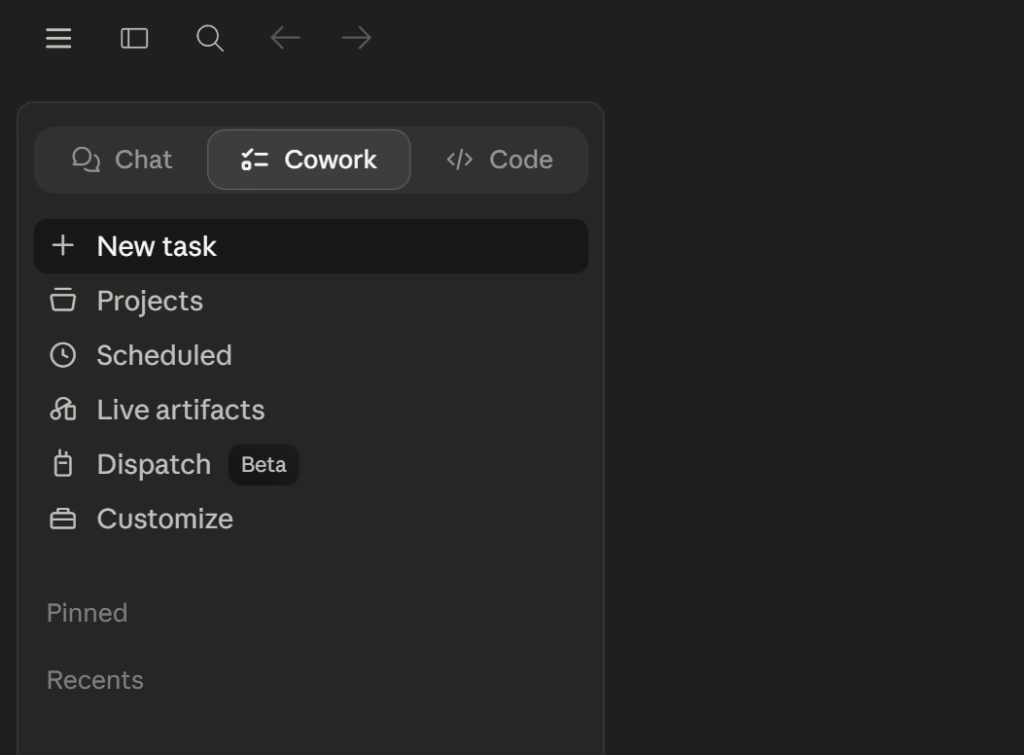
Same GHL connection, but you tell it what to do, set when it should do it, and go about your day. The Cowork Setup Guide covers everything about Cowork outside of GHL if you want the full picture.
Setting It Up
There are three ways to get GHL working in Cowork. Pick whichever one matches your comfort level.
Option A: Custom Connector + credentials in conversation (easiest)
Go to Settings > Connectors > Add custom connector in the Claude. Name it “GoHighLevel” and paste the MCP URL: https://services.leadconnectorhq.com/mcp/. Click Add and allow all tools.
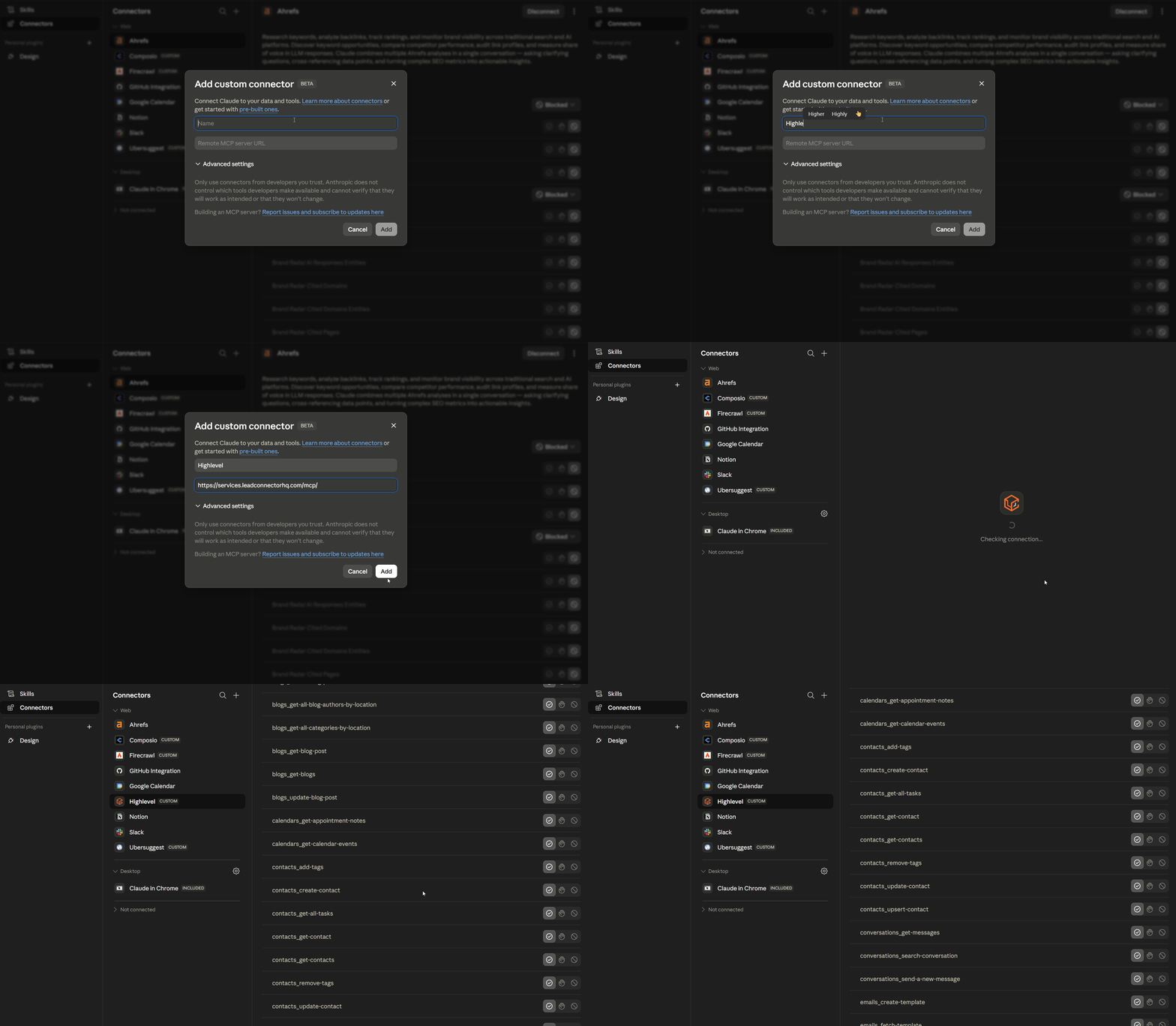
The connector loads the 36 GHL tools, but it won’t have your authentication baked in (because Custom Connectors use OAuth, and GHL’s MCP uses a Bearer token instead).
So when you start a Cowork conversation, you’ll need to give it your Location ID and Private Integration Token in the chat. Cowork will use them for that session.
If you don’t want to paste your credentials every time, tell Cowork to save them to a local file and remember the location for future sessions. That way it picks them up automatically next time.
Option B: Ask Cowork to set it up for you
This is the cleanest approach. Open Cowork and say something like:
PROMPT
"Add this MCP server to my claude_desktop_config.json. Merge it with whatever is already in the file, don't overwrite my existing settings."

{
  "mcpServers": {
    "gohighlevel": {
      "url": "https://services.leadconnectorhq.com/mcp/",
      "headers": {
        "Authorization": "Bearer YOUR_PRIVATE_INTEGRATION_TOKEN",
        "locationId": "YOUR_LOCATION_ID"
      }
    }
  }
}
Cowork edits your claude_desktop_config.json file and adds the GHL server with your Bearer token in the headers. After a restart, it’s permanently configured. No more pasting credentials each session.
One thing: Cowork can’t access the config file by default because it lives in a protected system folder. You’ll need to add that folder to Cowork’s trusted folders first. When Cowork asks for access, grant it. Or add the folder path manually in the Desktop app’s working folders. Once it has access, it reads your existing config, adds the GHL MCP entry, and saves it without breaking anything else in the file.
Option C: Edit the config file yourself
If you’re comfortable with JSON, open the Claude Desktop app, go to Settings > Developer > Edit Config. It opens the folder where claude_desktop_config.json lives. Add the GHL MCP config.
JSON
{
  "mcpServers": {
    "gohighlevel": {
      "url": "https://services.leadconnectorhq.com/mcp/",
      "headers": {
        "Authorization": "Bearer YOUR_PRIVATE_INTEGRATION_TOKEN",
        "locationId": "YOUR_LOCATION_ID"
      }
    }
  }
}
Save and restart the Desktop app. This is the same approach as Method 1 but done through the Desktop app’s settings instead of Claude Code.
Why doesn’t the Custom Connector just work by itself? Custom Connectors are built around OAuth, where you log in and grant access. GHL’s MCP server uses a static Bearer token instead of OAuth. GHL’s roadmap mentions OAuth support for MCP, so once that ships the “paste URL and click Connect” flow should work without any workarounds. For now, Options B or C are the most reliable.
What You Can Schedule
This is where Cowork gets interesting. You set up a task, tell it when to run, and forget about it.
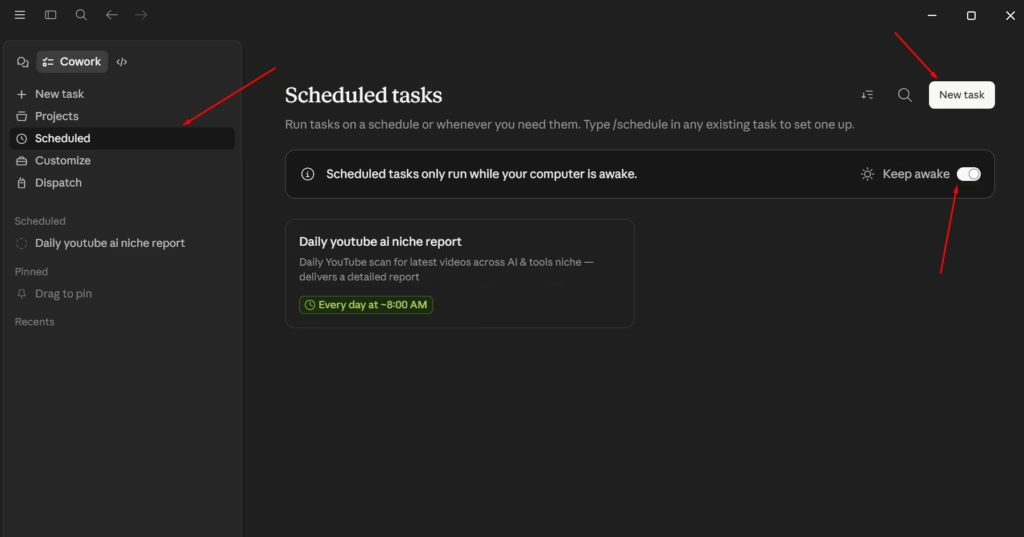
- Daily pipeline report. Every morning at 8am, Cowork pulls your pipeline stats, compares them to yesterday, and drops a summary in Slack or saves it to a file. You wake up and it’s already there.
- Weekly lead scoring. Every Monday, it looks at all new contacts from the past 7 days, checks their engagement (emails opened, links clicked, conversations started), and updates a custom field with a score. Your sales team sees scored leads before they’ve had coffee.
- Overnight cleanup. Duplicate contact detection, flagging opportunities that haven’t moved in 30 days, archiving dead leads. Clean CRM every morning without anyone doing anything.
- Social media prep. Queue up a week of scheduled posts based on a content calendar you keep in a local file.
The Catch
Cowork needs the Claude Desktop app running on your machine. Laptop closed? Tasks don’t fire.
If you need stuff to run whether your computer is on or not, that’s what Claude Routines are for. Routines run on Anthropic’s cloud on a schedule (hourly, daily, weekly, whatever).
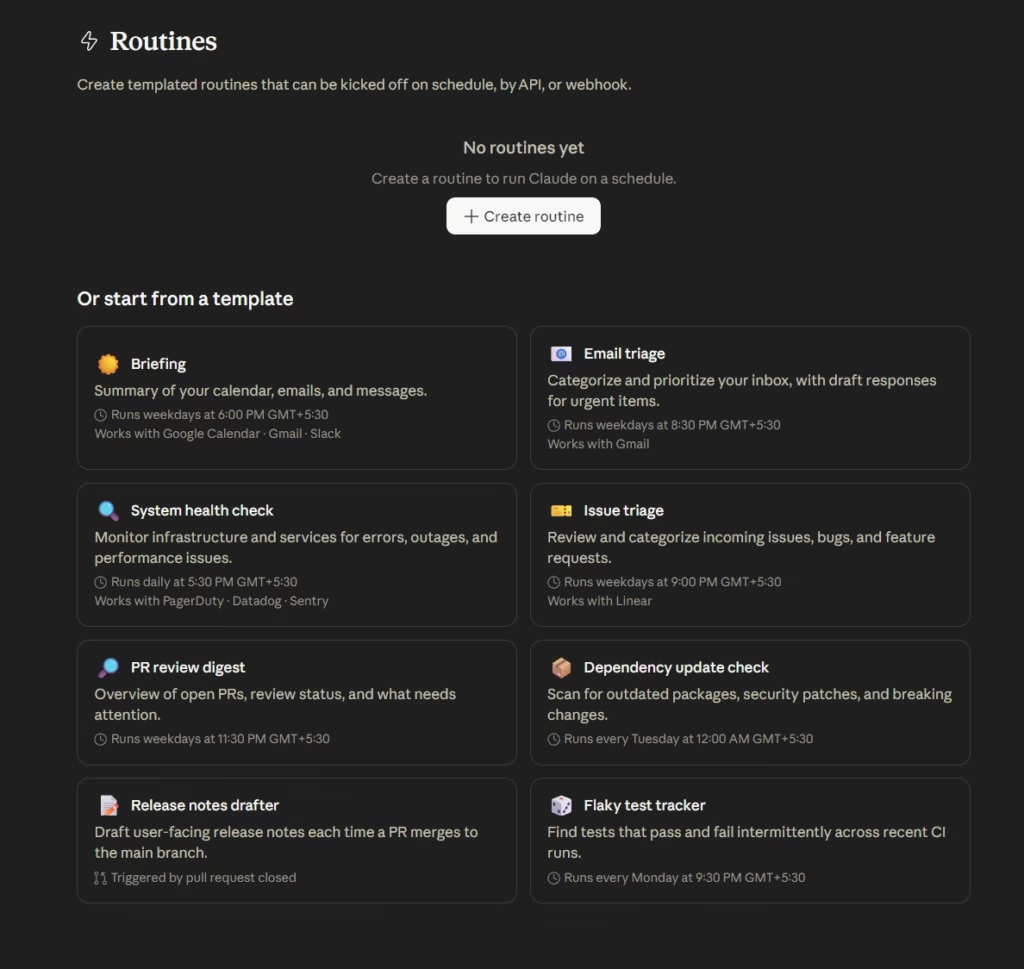
Same GHL connection, but they fire even when your laptop is off. You can set them up from the Desktop app, from claude.ai/code/routines, or with the /schedule command in Claude Code. My Routines guide covers the full setup.
Cowork is better when the task needs files from your machine alongside GHL data. Routines are better when you need it to run no matter what.
One thing to watch: if Cowork uses browser control as part of a task, it processes screenshots instead of lean JSON, which burns through tokens significantly faster than a pure MCP call. Keep that in mind if you’re on a Pro plan with limited usage.
Method 4: Claude in Chrome (Standalone)
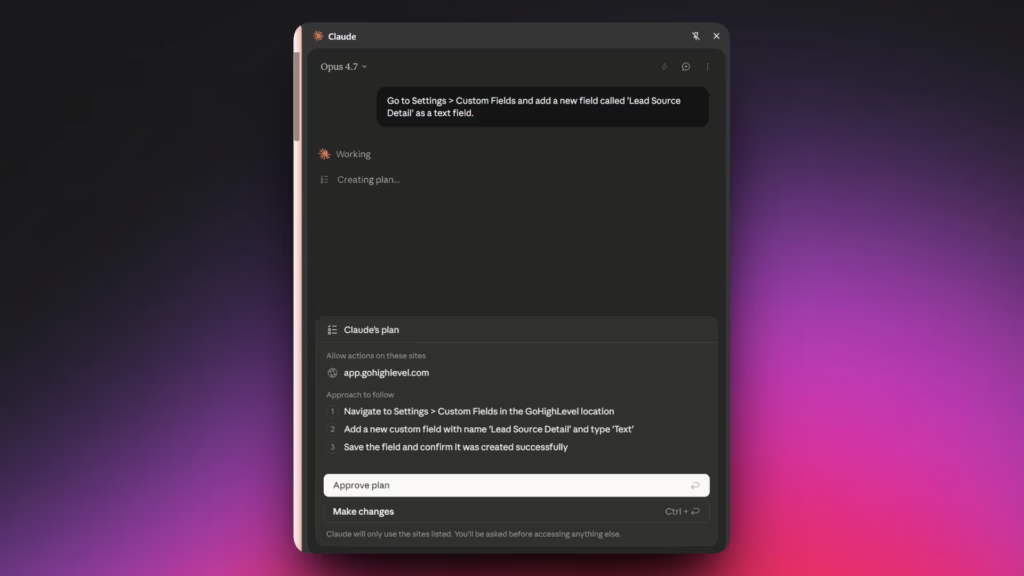
This is a Chrome extension that lets Claude actually see what’s on your screen and interact with it. MCP talks to GHL’s data through the API. The Chrome extension lets Claude look at the actual GHL dashboard and click around like a human would.
Why You’d Want This
Some things in GHL only exist in the UI. The visual workflow builder, the funnel/page editor, dashboard layouts, certain settings pages. There’s no API for those, which means MCP can’t touch them. The Chrome extension can.
How It Works
Install “Claude” from the Chrome Web Store (by Anthropic). Open your GHL dashboard in a Chrome tab. With the extension active, Claude can see that tab and click around in it.
You can say stuff like:
- “Go to my Workflows page and show me which ones had errors this week.”
- “Open the funnel builder for my Lead Capture page and change the headline to this new copy.”
- “Go to Settings > Custom Fields and add a new field called ‘Lead Source Detail’ as a text field.”
Claude sees the page and clicks, scrolls, and types just like you would.
When to Use This vs MCP
- MCP (Methods 1-3) is for data stuff: creating contacts, sending messages, managing deals, scheduling posts, pulling reports.
- The Chrome extension is for visual stuff: editing funnel pages, tweaking workflows in the drag-and-drop builder, navigating settings that don’t have API access.
- Both together for bigger jobs. Example: use MCP to pull all contacts who haven’t been contacted in 14 days, then use the Chrome extension to check which workflows should be catching those contacts in the visual builder.
Limitations
Still in beta. You need a paid Claude plan (Pro, Max, Team, or Enterprise). Pro users get Haiku 4.5. Max and above can switch between Haiku 4.5, Sonnet 4.6, and Opus 4.7.
Works on Chrome and Edge. Brave, Arc, and other Chromium browsers aren’t supported yet.
The browser window has to stay open and visible while Claude works. It can’t run in the background. Claude navigates on its own so you don’t need GHL open in a tab already, but Chrome does need to be running.
For anything involving a lot of data, MCP is way faster. Updating 50 contacts through the API takes seconds.
The Chrome extension would click through each one individually. It also eats tokens fast because every action involves processing a full screenshot. A task that costs a few hundred tokens through MCP could cost 10-20x more through the browser extension.
A note on speed: The browser extension works by screenshotting the page, deciding what to click, clicking it, screenshotting again, and repeating. That loop adds up. For reading what’s on screen and pulling information, it’s genuinely useful. For actually clicking through GHL settings and filling forms, it’s significantly slower than doing it yourself or running the same action through MCP. It’s in beta and it shows.
Method 5: Claude UI (claude.ai or Chat Mode)
Chat mode, claude.ai, and the mobile app can’t connect to GHL directly right now. Chat mode doesn’t see local MCP servers from your claude_desktop_config.json (only Code mode and Cowork do).
The Custom Connector UI only supports OAuth, and GHL’s MCP uses a Bearer token. You can add the GHL MCP URL as a custom connector and the 36 tools show up, but every call fails with “Bearer token is required.”
Workaround: Windsor.ai A third-party connector that pulls GHL data (contacts, pipelines, opportunities, payments, conversations) into Claude through Windsor’s OAuth flow. Works on claude.ai, mobile, and Chat mode without config files.
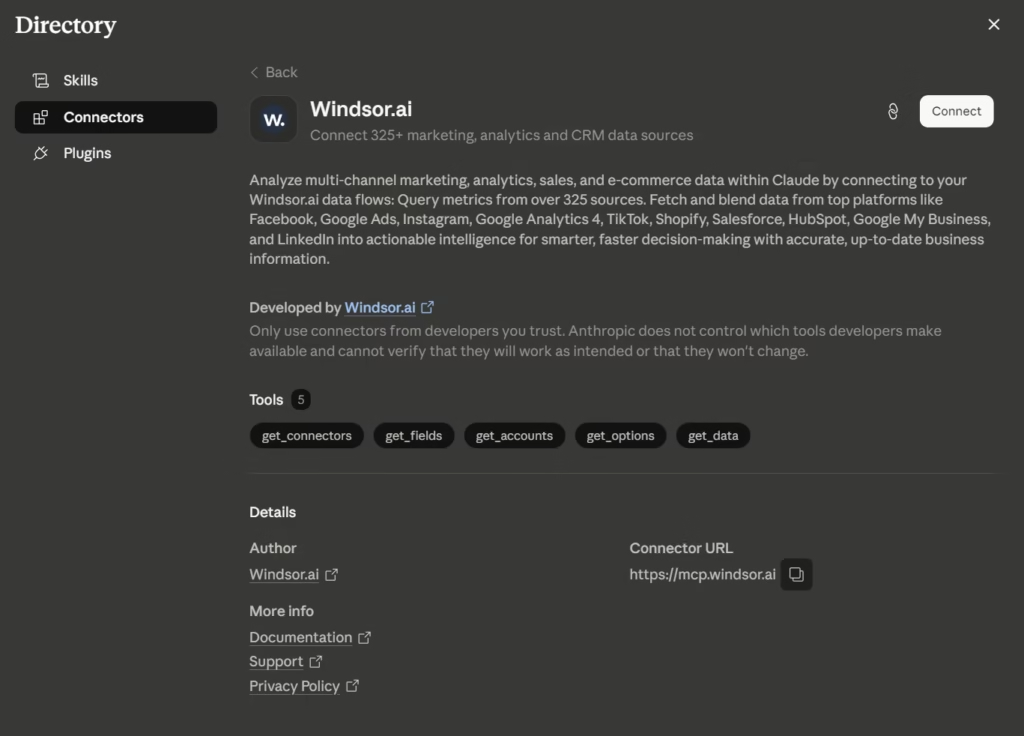
Go to Claude’s connector directory, find Windsor.ai, click Connect, authorize your Windsor account (which connects to your GHL account), and you’re querying CRM data from your phone.
The catch is read-only (no creating contacts or updating pipelines), and it’s a paid service. Free tier covers 1 data source and 1 account, paid starts at $23/month ($19/month annual).
Good for non-technical team members who just need quick lookups or checking pipeline numbers on the go. If you need write access or local file context, use Code mode or Cowork instead.
Method 6: Claude Code in IDEs (VS Code, Cursor, Windsurf, Antigravity)
If you already work in a code editor, you don’t need to switch to anything else. Claude Code runs as an extension inside VS Code, Cursor, Windsurf, and Antigravity. Same GHL connection, same tools, you just stay where you already are.
Who This Is For
If you’re building something on top of GHL (a custom dashboard, a webhook handler, an integration), you probably already have your editor open. Having Claude Code in there means your GHL tools and your code are in the same conversation.
If you’re not writing code and just want to check your CRM or schedule tasks, skip this and use Methods 1, 3, or 5. Those are simpler.
Setup
- VS Code / Cursor / Windsurf: Search for “Claude Code” in the extensions marketplace and install it. Works in VS Code forks like Cursor and Windsurf since they share the same extension system.
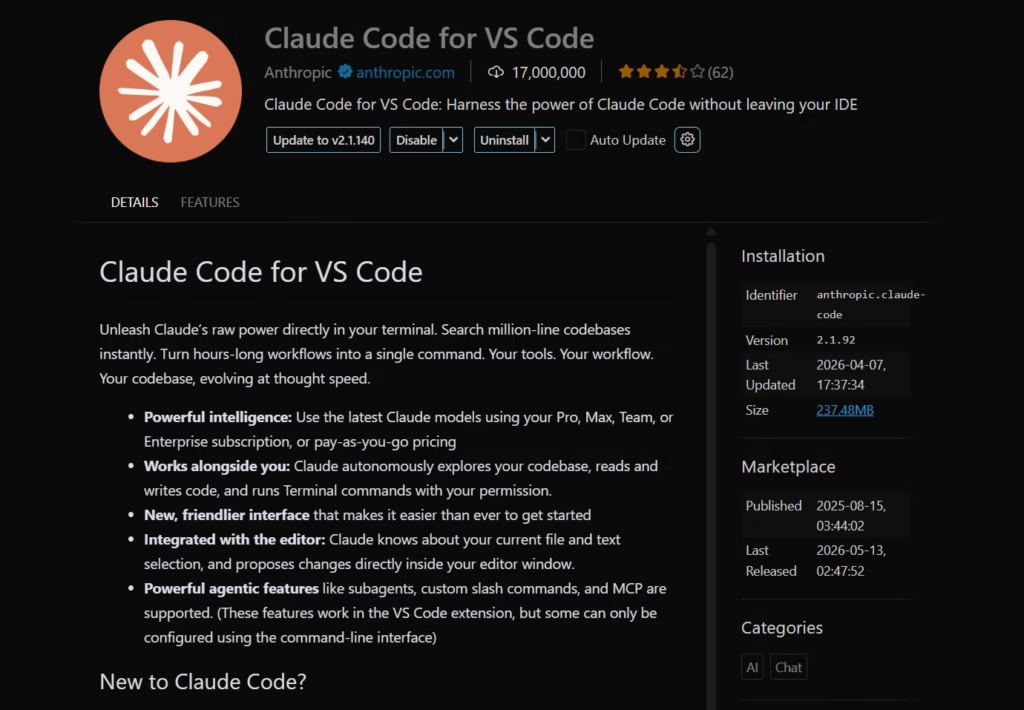
- Antigravity: Google’s Antigravity IDE is built on VS Code, so Claude Code installs the same way. Antigravity has its own built-in models (Gemini 3.1 Pro, Gemini 3 Flash, GPT-OSS 120B) plus Claude Sonnet 4.6 and Opus 4.6 in its model picker. But installing Claude Code separately gives you MCP access to GHL and newer Claude models, which the built-in models don’t have.
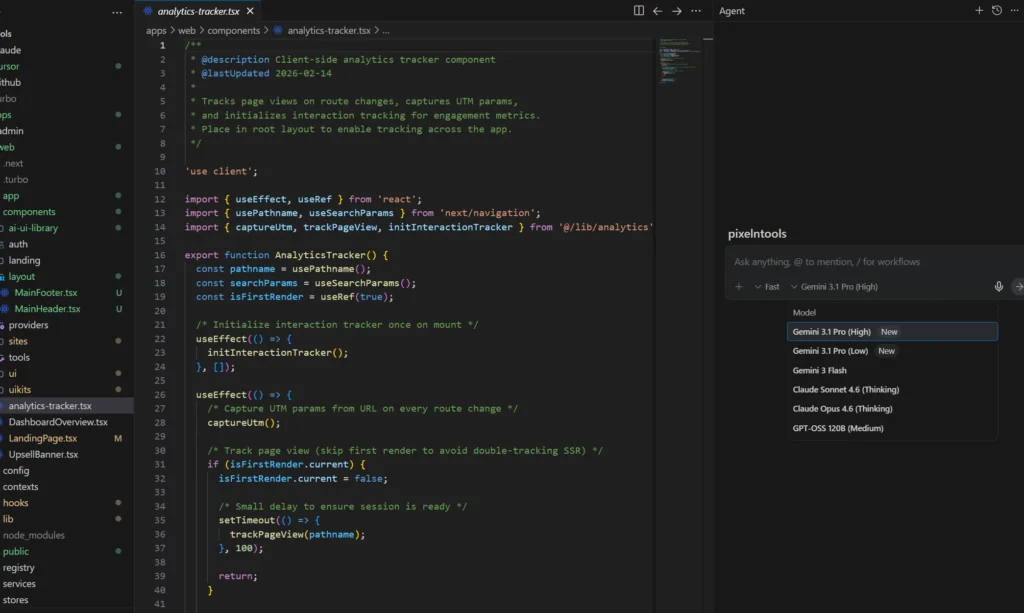
Once installed, it picks up the same MCP config as the terminal version. If you already set up GHL MCP in Method 1 or 2, it should just work. If not, add the config to your project’s .mcp.json or your global Claude Code settings or ask Claude to do it for you.
What the IDE Version Adds Over Terminal
You can highlight code in your editor and ask Claude about it with your GHL tools available in the same conversation. Select a function, say “refactor this to use the GHL contacts API instead of mock data,” and Claude sees both your code and your CRM data.
Editor error messages show up in Claude’s context automatically. If a GHL API call fails in your code, Claude sees the error without you copy-pasting anything. And code changes show up in your editor’s diff viewer for normal review.
Security: Don’t Give Claude the Keys to Everything
Every tutorial I found just says “paste your token here” and moves on. But now, AI has write access to a live CRM full of real client data. That kind of blew my mind.
People will follow a random YouTube tutorial and give full permissions to an AI they’ve been using for 10 minutes. Don’t be that person.
Creating Your Token
Go to GHL Settings > Private Integrations. Click “Create New.”
You’ll see a list of permission scopes. Each one controls what Claude can read or write in your account. This is where most people either give way too much access because it’s easier, or get stuck on read-only and can’t figure out why Claude won’t do anything.
The scope list you see depends on where you create the token. Agency-level tokens show around 24 scopes (companies, locations, SaaS settings, snapshots, users, documents, phone numbers, ad publishing).
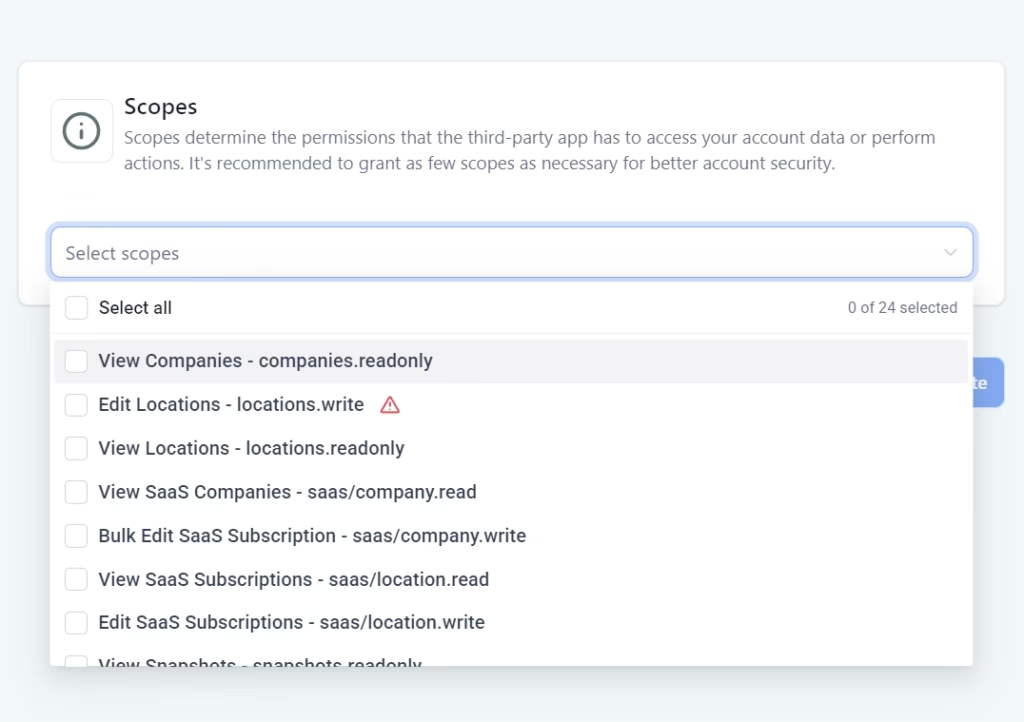
Sub-account-level tokens show 146+ scopes with much more granular control (contacts, calendars, conversations, invoices, funnels, payments, custom objects, forms, courses, and more).
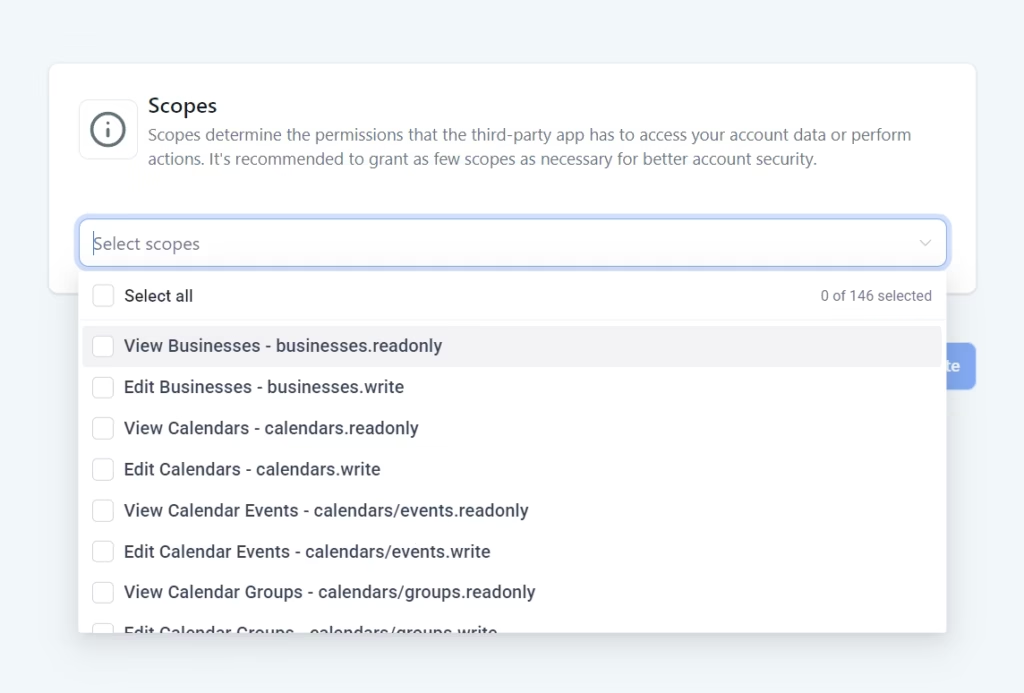
If you’re looking for contacts or conversations scopes and don’t see them, you’re probably at the agency level. Go into the sub-account and create the token there instead.
How to Think About Permissions
I’d do it in stages. Start small, add more as you get comfortable.
Stage 1: Read-only (start here)
Just pick the “View” scopes. GHL splits permissions between read and write for each category. Only pick the read versions.
For example: businesses.readonly, locations.readonly, saas/location.read, contacts.readonly, conversations.readonly, opportunities.readonly etc.
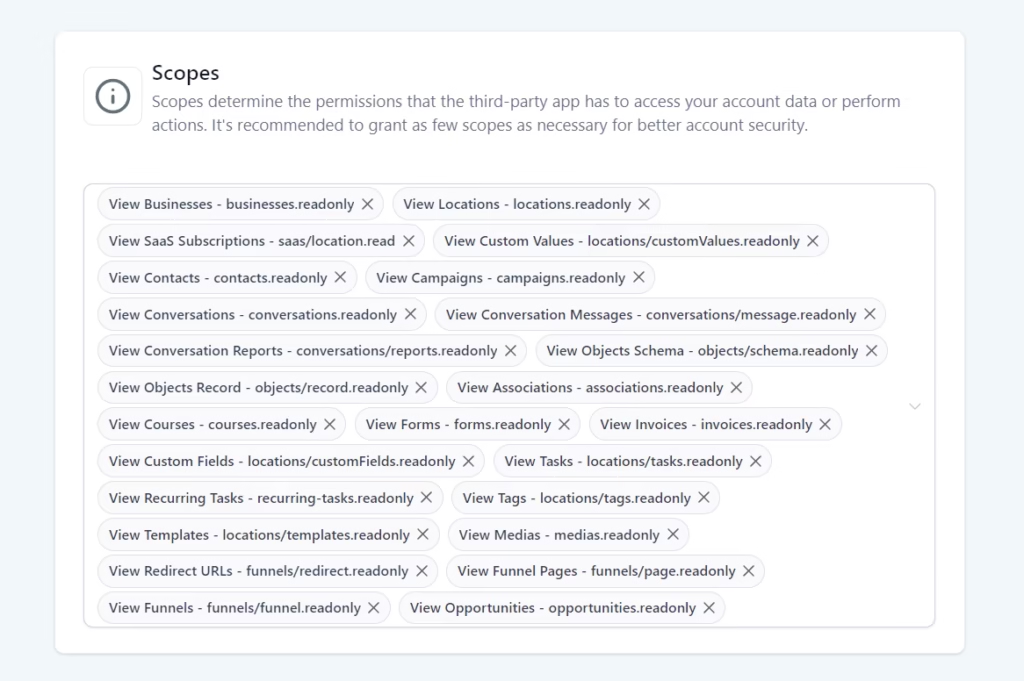
Do this for at least a week. Just let Claude look at your data. Get used to what it shows you and how it interprets things before you let it actually change anything.
Stage 2: Selective write access
Once you trust the read-only setup, add write permissions for the specific things you want Claude to act on. GHL pairs each read scope with a write scope (like locations.readonly has a matching locations.write).
Only turn on write for the categories you actually need. If you just want Claude to update contacts but not touch your pipeline, only enable contacts write.
Stage 3: Full access
All scopes enabled. Only do this after you’ve tested everything on a staging sub-account first. Some write scopes show a warning (like users.write or locations.write) because they can make big changes to your account.
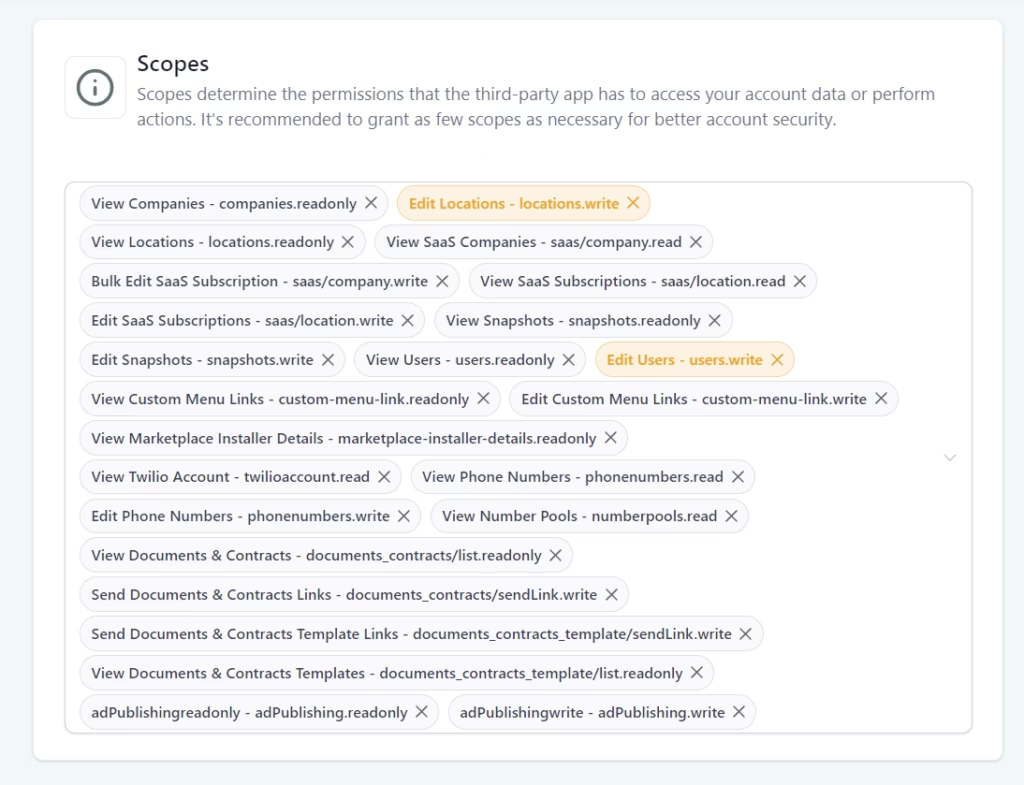
Don’t Touch These on Day One
- Payment stuff. Don’t give Claude invoice or payment write access while you’re still figuring things out. One sloppy prompt and Claude could void an invoice or create a charge you didn’t mean to. Try explaining that to a client.
- Account admin. Creating and deleting sub-accounts should stay manual until you really trust your setup.
- Bulk SMS. There are real compliance issues here (A2P 10DLC, TCPA). Automated bulk messaging can get you in trouble if it’s not configured right. Keep this manual until you’ve read the compliance section in the GHL pricing breakdown.
Rotate Your Tokens
Private Integration Tokens are static. They don’t expire on their own. If someone gets your token, they have full access to whatever scopes you enabled until you manually revoke it.
GHL recommends rotating every 90 days. Go to your Private Integration, scroll to the Access Token section, and click “Rotate and expire this token later” (gives you a 7-day overlap to update your configs) or “Rotate and expire this token now” if you think it’s been compromised.
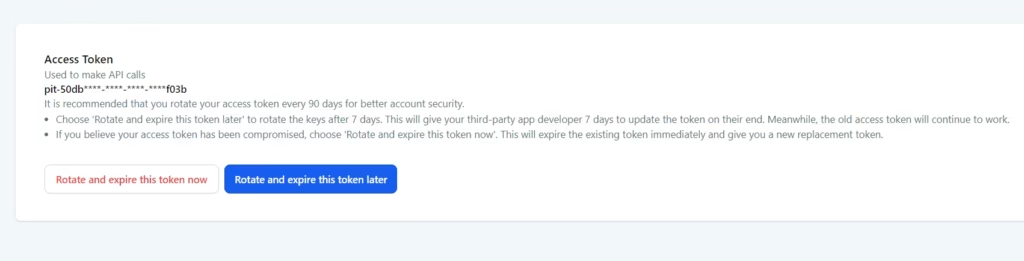
After rotating, update the token in your Claude Code config and claude_desktop_config.json if you use both.
Never commit your token to a Git repo. If your claude_desktop_config.json or .env file accidentally gets pushed to GitHub, rotate immediately.
If You Run an Agency
If you’re connecting Claude to client sub-accounts, you’re giving an AI access to other people’s data. That needs more than just a token.
- Use separate tokens for each sub-account. Don’t use one master token for all your clients. If something goes wrong, you want the damage limited to one account, not all of them.
- Test on a dummy account first. Build and test your workflows on a staging sub-account before running anything on real client data.
- Check the logs. MCP requests are logged. Look at them, especially in the first few weeks. Make sure Claude is doing what you think it’s doing.
- Tell your clients. If you’re using AI to manage their accounts, they should know. Not because it’s legally required everywhere (yet), but because it’s the right thing to do.
Which AI Does What?
If you’re confused about when to use GHL’s AI vs Claude, this should clear it up.
| Job | GHL’s Built-in AI | Claude |
|---|---|---|
| Answer a customer’s chat message | Conversation AI | Not its job |
| Book an appointment from a phone call | Voice AI | Not its job |
| Qualify a lead in real-time | Agent Studio | Not its job |
| Build multi-step AI agents (lead routing, booking, follow-up) | Agent Studio | Not its job |
| Generate email/social copy inside GHL | Content AI | Not its job |
| Audit your pipeline against your SOP | No native option | Claude Code |
| Generate JavaScript for a workflow node (with full project context) | Workflow AI (basic assist) | Claude Code |
| Bulk update 500 contacts based on external data | No native option | Claude Code (needs write scopes on PIT) |
| Create a weekly report combining GHL + GA4 + GSC data | No native option | Claude Code |
| Debug why a workflow isn’t firing | Workflow AI (limited) | Claude Code |
| Navigate and edit the GHL dashboard hands-free | No native option | Claude in Chrome (experimental) |
| List workflows and manage workflow contacts | Limited | Code mode + Community MCP |
| Build a custom dashboard pulling GHL data | No native option | Claude Code in IDE |
| Write webhook handlers for GHL events | No native option | Claude Code in IDE |
| Run scheduled CRM maintenance (machine off) | Not available | Claude Routines (blocked until GHL ships OAuth) |
| Run scheduled CRM maintenance (machine on) | Not available | Claude Code + cron job |
Can Claude handle the GHL-side jobs too? Technically, yes.
You could wire up Claude + Twilio for voice calls, build webhook-triggered lead qualification through the API, or use browser control to navigate the dashboard, but none of that is one-click.
It’s custom builds, scoped tokens, webhook handlers, and test runs. GHL’s AI is built for real-time customer-facing work inside the CRM.
Claude is built for the operator layer: auditing, coding, reporting, bulk updates, debugging, and connecting GHL with the rest of your stack.
They overlap, but they’re not the same tool. Use the native option where it exists.
What’s Next
So, that’s six ways to connect Claude to GoHighLevel. The official MCP server for everyday CRM work. Community servers for the stuff GHL hasn’t added yet.
Cowork for scheduled background tasks with optional browser control. The Chrome extension for visual dashboard work. Windsor.ai as a read-only workaround for claude.ai and mobile.
And Claude Code in your IDE for developers building on top of GHL.
If you’re picking one setup to start with, go Method 1. Official MCP + Code mode, read-only scopes, 10 minutes. Spend a week asking questions about your pipeline, contacts, and conversations. If the answers save you time, expand from there.
Part 2 covers what to actually do once you’re connected: automated blog publishing with schema injection, social media scheduling through the Social Planner API, building GHL websites with Claude Code, workflow automations from natural language, and Claude vs ChatGPT for agency work.
See you in the next post. PEACE ✌️
Frequently Asked Questions
About

Nick Chauhan
Web Developer & Founder Of PixelNThings
I build AI-powered systems that actually ship. Agents, automations, full-stack apps. Claude, Cursor, Gemini, MCP, n8n, Stitch etc.. Also design high-converting funnels and website on Systeme.io, WordPress & GoHighLevel. I post what I build.

